
What Does Compose Email Mean?
The term is used in every major email platform — Gmail, Outlook, Yahoo Mail, Apple Mail — and always refers to the same action: starting a brand new email. The button may be labeled "Compose," "New Email," "New Message," or represented by a pencil icon, but the meaning is identical across all of them.
A composed email is simply an email that has been written. Whether it's been sent, saved as a draft, or is still being written, it's referred to as a "composed email" — meaning someone has actively put it together.
Definition for composing an email:
To compose an email means to write a new email message from scratch. The word "compose" comes from the idea of putting something together — arranging words, a subject line, recipient addresses, and a message body into a complete communication ready to be sent. When you click "Compose" in your email client, you open a blank form where you build an email yourself, rather than replying to or forwarding an existing one.
How to Compose an Email, Step by Step
Whether you're using Gmail, Outlook, or any other client, composing an email follows the same logical sequence. Here's how to do it from scratch.
- Click "Compose" or "New Email": In Gmail, it's the large "+ Compose" button at the top left. In Outlook, it's "New Email" in the top ribbon. In Apple Mail, it's the pencil icon. This opens a blank compose window.
- Enter the recipient's email address in the "To" field: Type the full email address of the person or people you're sending to. Most clients will auto-suggest addresses from your contacts as you type.
- Write a clear, descriptive subject line: Summarize your email in one short line. Good: "Meeting request — Tuesday 2pm." Bad: "Hi" or leaving it blank. The subject line is your email's headline.
- Write your message in the body: Start with a greeting, write your message clearly and concisely, then close with a sign-off (Best regards, Thanks, etc.) and your name. More on this in the examples section below.
- Add attachments if needed: Click the paperclip icon to attach files. Always mention attachments in your message body ("Please find attached…") so the recipient knows to look for them.
- Review, then send: Read through your email before sending. Check for spelling errors, confirm the recipient address is correct, and make sure your subject line accurately reflects the content.
💾 Saving as a draft: If you're not ready to send, close the compose window and your email client will automatically save it as a draft. You'll find it in your Drafts folder to continue writing later.
Composing Email in Gmail vs. Outlook
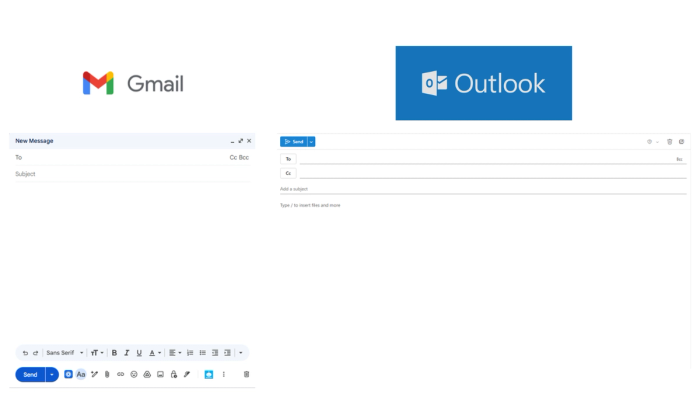
📧 Gmail: Click the "+ Compose" button (top left sidebar). A compose window opens in the bottom-right corner of the screen. You can expand it to full screen using the expand icon. Drafts auto-save continuously. Gmail shows the "To," "Subject," and body fields. Cc and Bcc are accessed via a small link inside the To field.
📬 Outlook: Click "New Email" in the top-left ribbon. A full compose window opens as a separate pane or dialog. Outlook shows To, Cc, and Subject by default. The ribbon at the top offers rich formatting options, priority flags, and the ability to attach meeting requests directly. Drafts are saved in the Drafts folder.
ℹ️ What to write in the compose email field in Gmail: The compose email field in Gmail refers to the blank message body area of the compose window. Write your greeting, your message content, and your sign-off here. Use the formatting toolbar at the bottom to add bold, italic, bullet points, or links to your message.
Types of Emails You Compose
Not all composed emails are the same. The type of email you're writing changes the tone, structure, subject line style, and content. Here are the main categories.
| Type | Purpose | Tone | Typical recipients |
|---|---|---|---|
| Professional / work email | Updates, requests, coordination, feedback at work | Formal–neutral | Colleagues, managers, coworkers |
| Client / business email | Proposals, account updates, service communication | Formal | Clients, business partners |
| Meeting request email | Schedule a meeting, confirm availability | Formal–neutral | Colleagues, clients, anyone |
| Newsletter email | Share updates, news, articles with a subscriber list | Conversational | Subscribers, audience |
| Marketing email | Promote products, services, offers | Persuasive | Customers, prospects |
| Confirmation email | Confirm a purchase, booking, or registration | Neutral–friendly | Customers |
| Personal email | Casual communication with friends or family | Informal | Friends, family |
| Follow-up email | Check in after a meeting, proposal, or conversation | Formal–neutral | Clients, colleagues, prospects |
Email composing checklist
✓ Recipient address is correct and complete
✓ Subject line clearly describes the email's topic
✓ Greeting addresses the recipient by name
✓ Opening sentence states the purpose immediately
✓ Message body is clear, concise, and free of spelling errors
✓ Any attachments mentioned in the body are actually attached
✓ A clear action or next step is included if needed
✓ Sign-off and sender name are included
✓ Tone is appropriate for the recipient and context
Key Terms in Email Composition
Compose: To write a new email from scratch. Clicking "Compose" opens a blank message window for you to fill in.
Composed email: An email that has been written, whether it has been sent, saved as a draft, or is still in progress.
Draft: An email you have started composing but have not sent yet. Drafts are saved automatically and can be accessed in the Drafts folder.
Subject line: The short title of your email that recipients see before opening it. A strong subject line is specific and informative.
Recipient: The person or people receiving your email. The primary recipient goes in the "To" field, while others can be added in Cc or Bcc.
Sender: The person composing and sending the email. Your "From" address identifies you as the sender to all recipients.
Cc: Carbon Copy. Sends a copy of the email to additional people who should be informed but are not the primary audience.
Bcc: Blind Carbon Copy. Similar to Cc, but the Bcc addresses are hidden from all other recipients.
Forwarding: Sending a received email to a new recipient. Unlike composing, forwarding passes along an existing conversation rather than starting a new one.
Email template: A pre-written email structure that can be reused. Templates save time in repeated situations such as meeting requests or customer confirmations.
Marketing email: An email created for marketing purposes to promote a product, service, or offer to customers or prospects.
Newsletter email: A regular email sent to subscribers containing updates, news, or curated content, usually composed on a schedule such as weekly or monthly.
Confirmation email: An email sent automatically or manually to confirm a transaction, registration, or booking, providing the recipient with a record.
Email accessibility: The practice of designing and composing emails so they can be read by everyone, including people using screen readers or those with visual impairments.
Email copywriting: The practice of writing email content intended to persuade, inform, or motivate readers, especially in marketing or newsletter emails.
Email banner: A header image placed at the top of a formatted or marketing email, used to reinforce branding and set the visual tone of the message.
In Summary
To compose an email means to write a new message from scratch — filling in the recipient, subject line, and message body, then sending it. It's the most fundamental action in any email client, and mastering it means understanding the purpose of each field, matching your tone to your audience, and always being clear about what you want the reader to do next.
- Always start with a clear subject
- State your purpose up front
- Match tone to recipient
- Proofread before sending
- Close with a sign-off and name