
Email Inbox Management Best Practices in 2026
Table of contents
- Why Your Inbox Is Overwhelming (and What It's Actually Costing You)
- The Email Inbox Reset: Where to Start
- Build a Folder System That Actually Holds Up
- Microsoft Outlook: Specific Settings and Tips
- Build Time Blocks for Email — and Protect Them
- The GTD Method Applied to Email
- Email Organization Strategies That Don't Require Willpower
- What "Inbox Zero" Actually Means (and What It Doesn't)
- How to Manage Email Overload When You're Already Behind
- Common Mistakes and How to Fix Them
- Final Thought
If your inbox currently looks like a city that never sleeps — notifications piling up, unread counts climbing, important threads buried under newsletters you forgot you subscribed to — you're not dealing with a willpower problem. You're dealing with a systems problem. Email inbox management best practices exist precisely because the default inbox experience is designed to receive, not to organize. Nobody sets it up to work for you.
This guide fixes that. Whether you're managing your own high-volume inbox in Microsoft Outlook, trying to build a sustainable email management system for your whole team, or simply drowning in too many emails, what follows is a practical, no-fluff playbook.
Why Your Inbox Is Overwhelming (and What It's Actually Costing You)
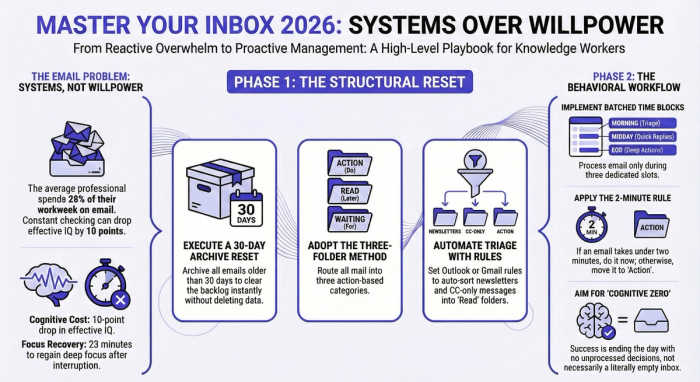
Before jumping to solutions, it helps to understand the specific failure mode you're dealing with. According to a study published by the McKinsey Global Institute, knowledge workers spend an average of 28% of their workweek reading and responding to email. That's more than a quarter of your professional life. A separate analysis by the Harvard Business Review found that constant inbox-checking — rather than batching email time — reduces effective IQ by up to 10 points in the moment, similar to sleep deprivation.
The inbox becomes overwhelming for a few predictable reasons:
- Too many inputs, no triage system. Every email lands in the same pile regardless of urgency or type. A company-wide update sits next to a LinkedIn digest sits next to a client escalation.
- The inbox doubles as a to-do list. Emails get left "unread" or starred as a reminder system, which means the inbox becomes a tangled mess of actions, archives, and anxiety triggers all at once.
- No rules or filters. Without automated sorting, every new message requires a manual decision. At 100+ emails a day, decision fatigue kicks in fast.
- Checking too frequently. Responding to every ping in real time doesn't make you more productive — it fragments your focus and trains your brain to treat email as an emergency service.
Sound familiar? Good. Naming the problem is step one.
The Email Inbox Reset: Where to Start
If your inbox has thousands of messages spanning years, trying to organize it chronologically is a losing battle. Instead, do a one-time inbox reset — a hard stop that draws a clean line between the past and a new system.
Here's how to run it:
Archive everything older than 30 days in a single move. In Outlook, this means selecting all emails before a cutoff date and moving them to an "Archive" folder. In Gmail, use the "Select all" option and click Archive. Nothing is deleted — everything is searchable — so this is fully reversible if needed. The archive is not a graveyard; it's off-field storage.
Once you've cleared the backlog, check any existing subfolders or labels. Move anything current back into your main inbox temporarily, then delete the old folder structure entirely. You'll build a better one from scratch.
A word on the psychology here. Most people resist the inbox reset because they fear losing something important. The search bar is your safety net. Every major email client — Outlook, Gmail, Apple Mail — indexes deleted and archived mail. Searching a sender's name or a keyword like "invoice" surfaces what you need in seconds. Scrolling through 4,000 emails to find something is not a system; it's an anxiety loop.
Build a Folder System That Actually Holds Up
The most durable email organization systems share one trait: they're based on what action an email requires, not on who sent it or what project it belongs to. Project-based folders fail because projects end, names change, and emails often relate to more than one topic. Action-based folders hold up because they're timeless.
The Three-Folder Method
This system, popularized by productivity writer Graham Allcott in How to Be a Productivity Ninja, keeps the primary inbox clean by routing every email to one of three places:
- Action — Emails that require you to respond, decide, follow up, or delegate. Check this folder during your dedicated email-working sessions.
- Read — Emails you've been CC'd on or that contain useful information but require no response. Skim these when you have five spare minutes, then archive.
- Waiting — Emails where the ball is in someone else's court. You've sent a reply; now you're waiting. Reviewing this folder weekly prevents things from falling through the cracks.
Everything else goes to archive or trash.
The Power User Folder Structure (Better for Outlook)
For a high-volume inbox in Microsoft Outlook, a more granular structure pays off. Number your folders so they sort in logical order directly beneath the inbox in Outlook's navigation pane:
01 - Quick Reply (responses under 2 minutes)
02 - Today
03 - This Week
04 - In Process
05 - Awaiting Response
06 - Review
07 - Reference
During each email-working session, sweep through the inbox and assign every message to its folder. Then work the folders in order. This prevents the common trap of re-reading the same emails multiple times without acting on them — a documented time sink that adds up to hours per week.
Microsoft Outlook: Specific Settings and Tips
A large portion of inbox management questions relate specifically to Outlook, so here's a focused section on making that platform work harder for you.
Create Rules to Auto-Sort Incoming Mail
Outlook's Rules feature (Home → Rules → Manage Rules & Alerts) lets you define conditions and actions that run automatically on every incoming message. Practical rules to set up immediately:
- All emails from newsletter senders → move to Read folder
- All meeting invitations → move to a Calendar folder
- Any email where your name appears in the CC field only → flag as lower priority
- Emails from key contacts or clients → flag as high priority
Rules eliminate the decision fatigue of manual sorting for emails that always belong in the same place.
Use Outlook Categories for Color-Coding
Outlook's Categories feature (right-click any email → Categorize) lets you assign color labels without moving emails out of their folders. A practical color scheme:
- Red = Urgent, needs same-day action
- Orange = Client-related
- Blue = Internal/team
- Green = Waiting on someone else
- Yellow = Read-only, low priority
Combine categories with Outlook's View filter to see only one color at a time — effectively creating a filtered task view without leaving your email client.
Configure Your Outlook Layout for Clarity
Outlook's default layout isn't optimized for fast triage. A few tweaks that make a meaningful difference:
- Reading Pane: Move it below the message list rather than to the right. This gives you wider subject line previews, which speeds up scanning.
- Focused Inbox: Outlook's AI-powered Focused Inbox splits your inbox into Focused (important) and Other (less critical). It's imperfect but useful as a first-pass filter.
- Conversation View: Turn this on (View → Show as Conversations) so threads collapse into single rows. A 12-reply email chain becomes one line instead of twelve.
- Compact Layout: Under View → View Settings, switch to Compact to display more messages per screen without scrolling.
Tips for Teams Managing Shared Inboxes
If your team operates a shared inbox — common in customer support, operations, or project coordination — establish clear ownership conventions before anything else. Decide who responds to what, use categories to signal assignment (e.g., "Assigned to Marco"), and use Outlook's native shared mailbox features rather than forwarding messages to individuals. Forwarding fragments thread history; shared access keeps conversations intact.
Build Time Blocks for Email — and Protect Them
This is the behavioral shift that makes all the structural changes stick. The best folder system in the world doesn't help if you're still checking email every eight minutes throughout the day.
Research from UC Irvine found that it takes an average of 23 minutes to fully regain deep focus after an interruption. Email notifications are interruptions — even glancing at a subject line breaks your working state.
The alternative is batched email time: specific slots in the day dedicated to processing email, outside of which notifications are off and the inbox is closed. A practical starting structure:
- Morning (8:30–9:00 AM): Clear anything urgent from overnight, move items into action folders.
- Midday (12:00–12:30 PM): Process the morning's inflow, respond to quick items, move longer responses to their appropriate folder.
- End of day (4:30–5:00 PM): Work through the Action folder, address anything requiring more time, review the Awaiting Response folder for follow-ups.
This doesn't mean being unresponsive. It means setting realistic expectations. One underused feature in both Outlook and Gmail: the out-of-office autoreply used not for vacations, but to explain your communication rhythm. A message that reads "I check email at 9 AM, 12 PM, and 5 PM — for urgent matters, call or message me on Teams" trains colleagues toward better habits while protecting your focus time.
The GTD Method Applied to Email
David Allen's Getting Things Done methodology translates cleanly to email management. The core decision tree for every message:
- Does it require action?
- No → Archive it or trash it immediately.
- Yes, and it takes under 2 minutes → Do it now, then archive.
- Yes, and it takes more than 2 minutes → Move it to the appropriate action folder and schedule time to address it.
- Are you waiting on someone else before you can act? → Move to Awaiting Response and set a follow-up reminder.
- Is it reference material you might need later? → Move to a Reference folder, not your main inbox.
The GTD principle that matters most here: your inbox is an input tray, not a storage system. Treating it as storage is the root cause of most inbox overwhelm.
Email Organization Strategies That Don't Require Willpower
The best email management system is one you can maintain on your worst day. A few structural choices that reduce ongoing cognitive load:
Use templates for repeated responses. If you're writing the same email more than twice a month, it should be a template. In Outlook, these are called Quick Parts (Insert → Quick Parts). In Gmail, use Templates (formerly Canned Responses). A template for meeting confirmations, invoice acknowledgments, or status update requests saves five minutes per instance — which adds up to hours over a month.
Unsubscribe aggressively. Most people tolerate newsletter overload for years without doing anything about it. Spend 20 minutes using Outlook's or Gmail's built-in unsubscribe link detection, or a dedicated tool like Unroll.me, to clear out promotional email at the source. Every email you prevent from arriving is one you don't have to triage.
Go offline when processing. When working through a backlog, use Outlook's Work Offline mode (Send/Receive → Work Offline) or simply enable Airplane mode on your device. This stops new emails from appearing while you're triaging — preventing the demoralizing experience of emptying a bucket that keeps refilling. Reconnect when you're done.
Use search instead of scroll. This is the mindset shift that makes the whole system work. Once you trust that the archive is searchable, you stop needing elaborate folder structures to avoid "losing things." Outlook's search lets you filter by sender, date range, subject, attachment type, and more. Learning a handful of search operators takes ten minutes and saves hours.
What "Inbox Zero" Actually Means (and What It Doesn't)
There's a widespread misconception that inbox zero means an empty inbox at all times — a kind of email perfectionism that creates stress rather than relieving it. The original concept, articulated by Merlin Mann in a 2007 Google Tech Talk, was about cognitive zero: ending each day with no unprocessed decisions sitting in your inbox. The inbox is clear when you shut down for the day; everything has been triaged to a folder, archived, or deleted.
Your action folders might have 20 items in them. That's fine — those are known, scheduled tasks, not lurking unknowns creating background anxiety.
Realistic inbox zero for most professionals means: at the end of the workday, your primary inbox contains zero unread messages and zero messages requiring a decision. Whether you hit this every day or three times a week is less important than whether you have a system that makes it achievable at all.
How to Manage Email Overload When You're Already Behind
Even with a solid system in place, email overload happens — after a vacation, a busy project sprint, or simply a week where other priorities took over. When you return to a flooded inbox, resist the urge to start from the top and work down chronologically. Instead:
Start with a search filtered to your name in the To field over the last 48 hours. Those are the messages most likely to still need a response. Handle those first. Then archive everything older than two weeks in one move. Finally, process what remains using the triage method above.
The goal isn't to read every email you missed. It's to identify anything that still requires action and clear the rest.
Common Mistakes and How to Fix Them
| Mistake | Fix |
|---|---|
| Using stars or flags as your only system | Stars don't scale. Move flagged emails into a dated action folder instead. |
| Creating too many project-based folders | Collapse to action-based folders. Archive by project only if you have compliance reasons to separate them. |
| Checking email first thing in the morning | Start with 30 minutes of focused work before opening the inbox. It sets the tone for the whole day. |
| Leaving emails "unread" as reminders | Mark everything as read. Use your action folder as the reminder system, not the read/unread toggle. |
| Never using rules or filters | Even two or three rules — for newsletters, calendar notifications, CC-only emails — dramatically reduce manual triage. |
| Treating every email as urgent | The vast majority of business emails don't require a same-day response. Most can wait for your next scheduled email block. |
Final Thought
Every strategy in this guide works. None of them require you to become a different kind of person, get up earlier, or care more about email than you currently do. They require a one-time setup — the reset, the folder structure, the rules, the time blocks — and then a couple of weeks of adjustment while the habits settle in.
The inbox is not the enemy. An inbox without a system is. Build the system once, maintain it lightly, and watch both the hours and the anxiety drop.
Sources and further reading:
- McKinsey Global Institute: "The social economy: Unlocking value and productivity through social technologies" (2012)
- Harvard Business Review: research on cognitive load from email interruption
- Gloria Mark, UC Irvine: "The Cost of Interrupted Work: More Speed and Stress" (2008)
- Merlin Mann: "Inbox Zero" lecture, Google Tech Talks (2007)
- David Allen: "Getting Things Done" (2001, revised 2015)