
How to Eliminate Image Gaps and Vertical Spacing in HTML Emails
Table of contents
You have a skeleton (the tables). Now we need to add the muscle (images) and the flesh (text). In this chapter, we tackle the two most common bugs in table based html email: images that have weird white gaps below them, and text that refuses to align vertically in Outlook.
1.1 The "Phantom Gap" (Images)
In standard web design, images are inline elements by default. This means the browser treats an image exactly like a letter of text (like the letter "y" or "g"). Because of this, browsers reserve 3–5 pixels of space below the image for the "descender" (the tail of the letter).
In an email layout, where you are stacking images directly on top of each other (like a hero banner), this 3px gap creates ugly white lines that break your design.
HTML
<img class="t0" style="display:block; border:0; height:auto; width:100%; Margin:0; max-width:100%;" width="113" height="31" src="..." />

display: block: This is the cure. By forcing the image to be a block-level element, the browser stops treating it like text. It removes the descender space, and the image sits perfectly flush against the bottom of the table cell.border: 0: Older versions of Internet Explorer (which some corporate email clients still rely on) add a blue border around images if they are wrapped in a link<a>. This ensures no border appears.- The Width Paradox: Notice
width="113"(HTML) vswidth: 100%(CSS).- Desktop Outlook: Reads the
width="113". It will render the logo exactly 113 pixels wide. - Mobile: Reads
width: 100%. Since this image is inside a container, it allows the image to scale down if the screen gets smaller than 113px (unlikely for a logo, but critical for large banners).
- Desktop Outlook: Reads the
Tabular is a HTML email template creator that lets you customize free HTML email templates and export clean HTML without coding.
1.2 Typography & The Line-Height Trap
Microsoft Outlook uses the Microsoft Word rendering engine. Word thinks it knows better than you. If you set a line-height that Word thinks is "too tight," it will ignore your code and force a default spacing (usually 1.2x the font size).
HTML
<h1 class="t10" style="margin:0; font-family:Raleway, sans-serif; line-height:57px; mso-line-height-rule:exactly; font-size:48px; ...">
    Black Friday
</h1>
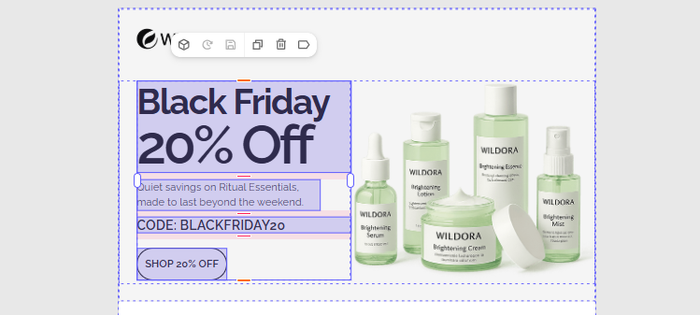
mso-line-height-rule: exactly: This is the "Override Switch." It forces Outlook to respect the57pxline height you defined, regardless of the font size. Without this, your title might look vertically stretched in Outlook 2016/2019.- The Font Stack:
font-family: Raleway, BlinkMacSystemFont, Segoe UI, Helvetica Neue, Arial, sans-serif;- This is a "Waterfal."
- Tier 1 (Raleway): Loaded if the client supports Web Fonts (Apple Mail, Thunderbird).
- Tier 2 (BlinkMac/Segoe): System fonts for Mac/Windows if Raleway fails.
- Tier 3 (Arial): The final safety net for Outlook, which often blocks web fonts.
1.3 The "Spacer" (Vertical Rhythm)
In web design, you would add margin-bottom: 40px to the image to push the text down. In email, we do not trust margins. Outlook often ignores vertical margins on images or text tags.
Instead, we build "Physical Spacers."
Code From The Template:
HTML
<tr>
<td>
<div class="t46" style="mso-line-height-rule:exactly; mso-line-height-alt:40px; line-height:40px; font-size:1px; display:block;">
</div>
</td>
</tr>
Textbook Analysis:
- The Logic: We create a
<div>that contains nothing but non-breaking spaces ( ). line-height: 40px: This sets the height of the gap.font-size: 1px: (Critical) Browsers have a default font size (usually 16px). If you tried to make aline-height: 5pxspacer without settingfont-size: 1px, the browser would force the box to be at least 16px tall to fit the "ghost text." Setting the font size to 1px allows us to create very thin spacers if needed.
Chapter 3 Summary
You have populated the skeleton with content.
- Images: Always use
display: blockto kill the white gap. - Headlines: Always use
mso-line-height-rule: exactlyfor precision in Outlook. - Spacing: Never use margins. Use an empty
<div>or<td>with a specific line-height andfont-size: 1px.
Ready for Chapter 4? We will tackle the hardest part of email coding: The Columns in html emails. We will build the product grid that sits side-by-side on desktop but stacks vertically on mobile.