
How to Create an Email Template in Gmail
Writing repetitive emails wastes time and reduces productivity. Copy-pasting messages, fixing email formatting, and rewriting similar replies can quickly become frustrating. You can overcome this by creating email templates in Gmail, saving time and maintain professionalism in your email correspondence.
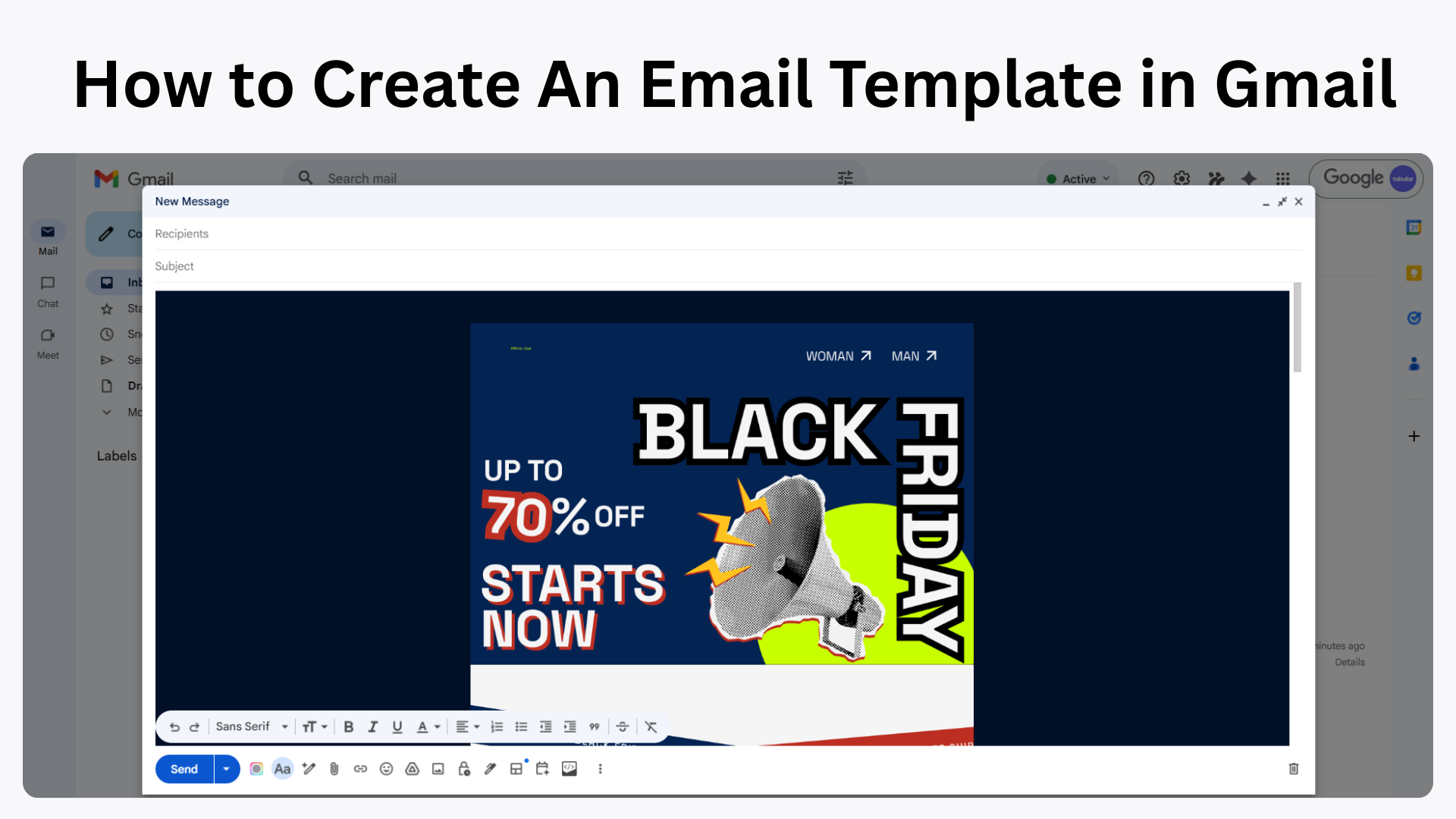
HTML email templates can also be created externally and added to Gmail, allowing you to reuse branded designs within your everyday email workflow.
- Go to Settings → Click the gear icon in the top right corner → See all settings.
- Enable Templates → In the General tab, scroll to Templates → Select Enable → Click Save Changes.
- Compose a New Email → Click Compose → Draft your message.
- Save as Template → Click the three dots at the bottom right → Hover over Templates → Click Save draft as template → Select Save as new template.
If you are lost, don’t worry. You can find clear and detailed steps for creating an email template in Gmail, complete with screenshots and visuals that point out every action in the following sections of the article.
.png?w=700&fit=max&auto=format)
Creating an email template in gmail is a pretty straightforward process but it requires some background information.
Create Email Templates in Gmail Step by Step
Email template option is disabled by default in Google. If you are not seeing the email template option in Gmail, you have to enable it from the settings first.
Step 1: Enable templates in Gmail (if you don’t see the templates option)
First, check whether templates in Gmail are active. To do this, start composing a new email and click on the three-dot "(⋮)" (More options) icon at the bottom right. If you don’t see an option for templates, you need to enable it.
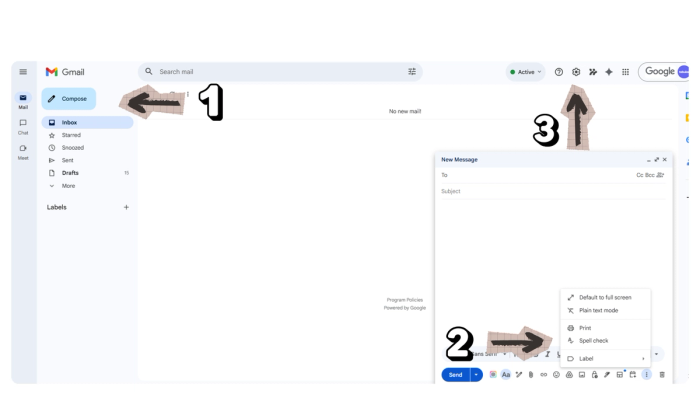
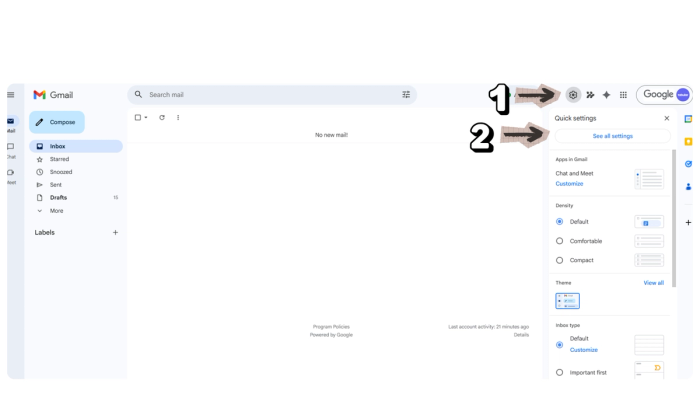
To enable templates in Gmail, go to the gear icon in the top right corner. This will open a quick settings panel. From there, click See all settings. On that page, you can enable templates for Gmail and start creating templates.
Step 2: Enable templates in Gmail Settings
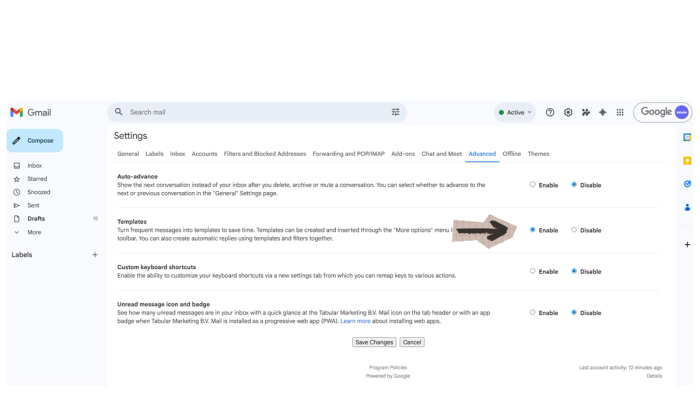
As mentioned, templates are disabled by default, but you can activate them easily. Simply select the Enable radio button next to the Templates option and click Save Changes. This step is important because if you don’t click Save Changes, Gmail will not apply your selection automatically.
Step 3: Create an Email Template in Gmail
You are almost there. Now you can create an email template in Gmail. First, go back to the main interface and start composing a new email. When you click on the three dots icon at the bottom right (⋮), you will now see an option called Templates.
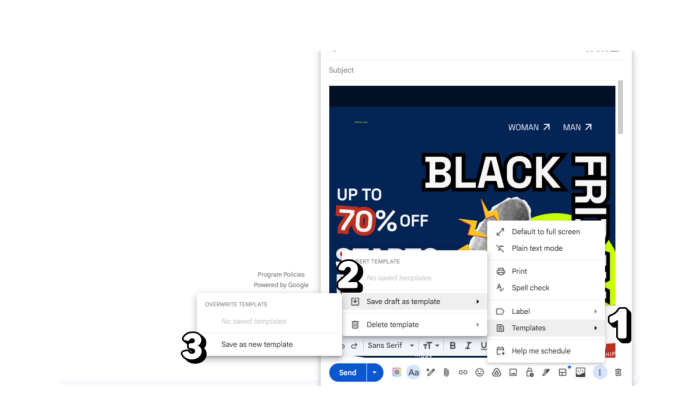
Draft your message in the same compose box, then click on the Templates option, select Save draft as template, and choose Save as new template, as shown in the screenshot. Congratulations, you have created your first email template in Gmail.
From here, you can also create HTML email templates for Gmail, store them, and use them for sales and email marketing campaigns.
If you want to use Gmail for email marketing, I suggest checking our Gmail HTML email templates and other helpful articles on how to insert HTML into Gmail and how to send personalized emails in Gmail.
How to Delete an Email Template in Gmail
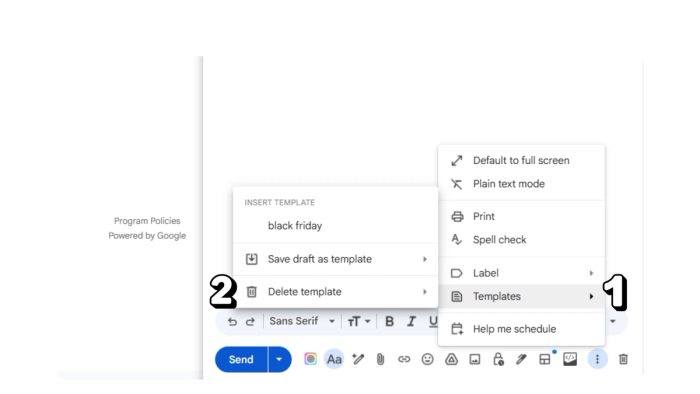
Deleting a saved email template in Gmail is a similar process. Start by composing a new email and click on the three dots at the bottom right corner to see the Templates option. Hover over Templates, select Delete template, and then click on the template you want to delete.
Rules for Creating Email Templates in Gmail
- You cannot create, edit, or manage templates in the Gmail app (iOS/Android).
- Native "Templates" saved on desktop do not appear in the mobile app's compose menu.
- Native templates do not support attachments. Any file attached when saving a template is stripped when the template is inserted.
- Templates do not sync with Drafts. If you edit a template, it does not update any drafts created from it.
- You cannot save a subject line independently; the template subject defaults to the first line of the saved message or the saved template name.
- If your template’s total HTML code exceeds 102 KB, Gmail will clip the content, hiding the bottom of the email.
- The ideal width is 600px. If you exceed 640px, Gmail may fail to render background colors correctly.
- Gmail strips
<style>tags in the<head>on some mobile versions. Inline CSS is required for consistent rendering. - Templates/Layouts are capped at 10,000 characters.
- The number of templates you can save depends on your account type:
- Personal (@gmail.com): 30 templates maximum.
- Google Workspace (Paid/Business): 50 templates maximum.
Final Words
With Tabular’s email template generator, you can create HTML email templates that strictly follow all of Gmail’s rules without worrying about limitations.
The Figma-like drag-and-drop interface of Tabular’s email editor makes email creation easy for everyone, offering an intuitive interface, premade modules, and free email templates for Gmail.
If you are using Gmail for your sales campaign, you can select a free template, customize it using Tabular’s Figma-like email editor, and export it as HTML to use in Gmail—for free.