
How to Insert HTML Email Templates to Gmail in 2026
If you've ever tried to send a beautifully designed email directly from Gmail, you've probably run into the same wall: Gmail's compose window simply doesn't support rich HTML formatting out of the box, you need to insert html into Gmail.
The good news is that it's possible to embed HTML in Gmail without being a developer.
In article on how to how to send html email in Gmail, I'll show you two methods: the classic inspect-element approach and a quick browser extension method.
Both work seamlessly for sending HTML email templates in Gmail, I’ll also show you how to get professionally designed HTML email templates for free and customize them using Tabular’s Figma-like, easy-to-use email template builder.
Before we start, here's what you'll want to have ready:
- A Gmail account
- A free Tabular account for email templates and customization (you can log in with Google)
- A web browser (Google Chrome works best for the inspect method)
- About 10 minutes of your time
How to Use HTML Email Templates in Gmail?
Plain-text emails are fine for quick replies, but if you're running a promotion, sending a newsletter, or reaching out to clients, a well-designed HTML email makes a real difference. Studies consistently show that visually appealing emails get higher open rates, more clicks, and better brand recall.
The challenge is that Gmail wasn't built with HTML email design in mind. That's where Tabular comes in — it's a drag-and-drop email builder that generates clean, Gmail-compatible HTML code you can drop straight into your compose window.
Method 1: The Classic Method (No Extension Required)
This method uses Chrome's built-in developer tools to inject HTML directly into the Gmail compose window. It sounds technical, but it's straightforward once you've done it once.
Getting Your HTML Template from Tabular
Step 1: Go to Tabular’s free email templates gallery, where you can find professionally designed HTML email templates for every use case.
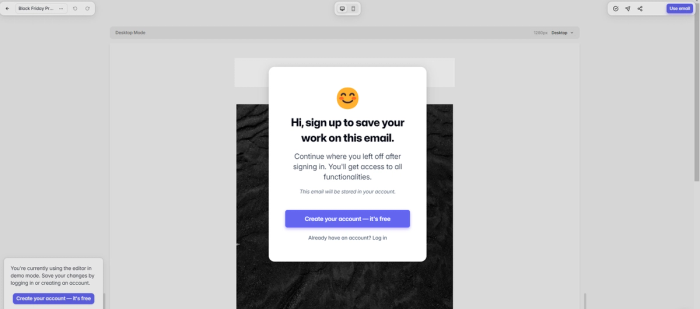
Step 2: If you don't have an account yet, sign up for free. You can also log in quickly using your Gmail account.
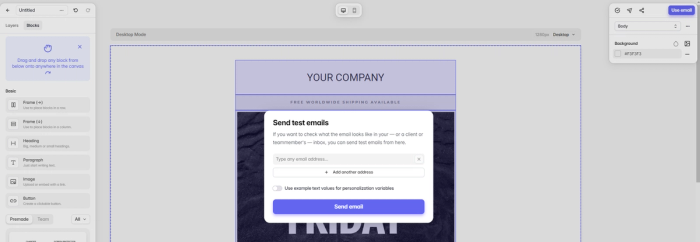
Step 3: Browse the template library and choose one you'd like to use. Tabular offers a wide range of free templates, including seasonal designs like Black Friday email templates, welcome emails, newsletters, and more — all built to render correctly in Gmail. From your chosen template, you can either send a test email directly from Tabular for free (no HTML editing required), or download/copy the HTML to use in Gmail.
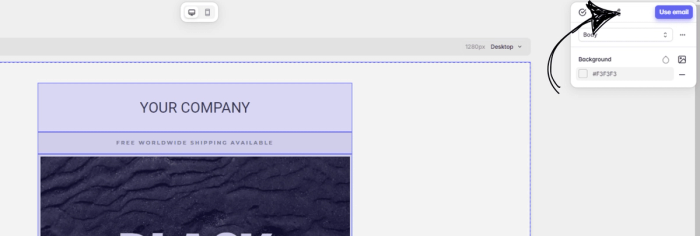
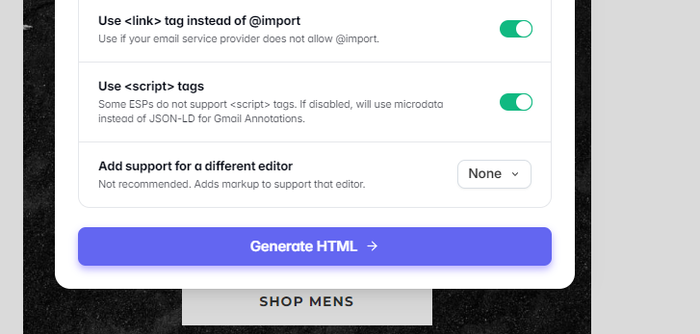
Step 4: To customize and use your template in Gmail, click Use Email. A pop-up window will appear with several options. Tabular can send HTML email templates with attachments directly through Gmail, and it automatically hosts any images used in your template — so you don't need to worry about broken image links. When you're ready, click Generate HTML.
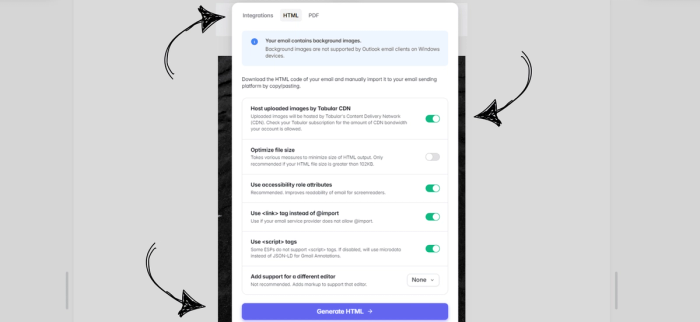
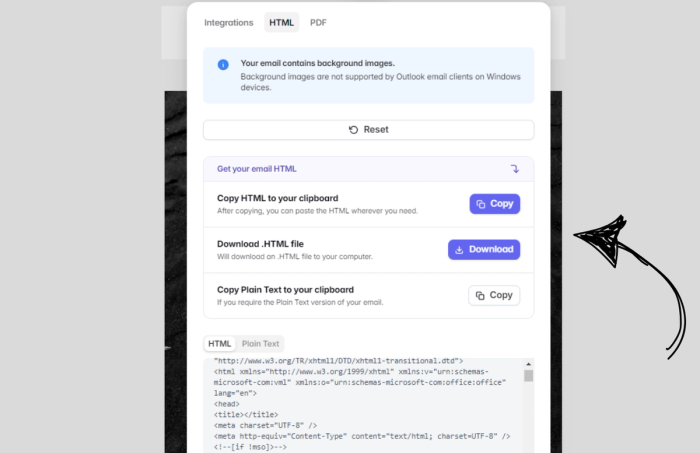
Step 5: Tabular gives you the option to download the HTML file or copy it to your clipboard. For this method, copy the HTML to your clipboard and head back to Gmail.
Embedding the HTML into Gmail
Step 6: Open Gmail and click Compose to open a new message window.
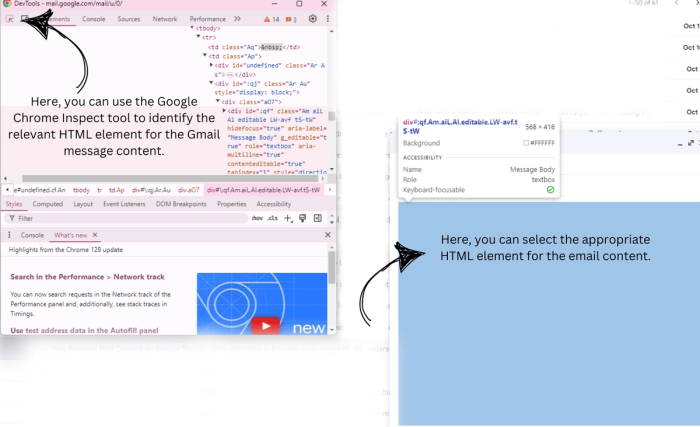
Step 7: Right-click anywhere inside the Gmail compose window (the message body area) and select Inspect. This opens Chrome's developer tools panel.
Step 8: In the developer tools, click the element selector icon (the arrow/cursor icon in the top-left of the panel). Then hover your mouse over the Gmail compose message body and click on it to highlight the relevant HTML element.
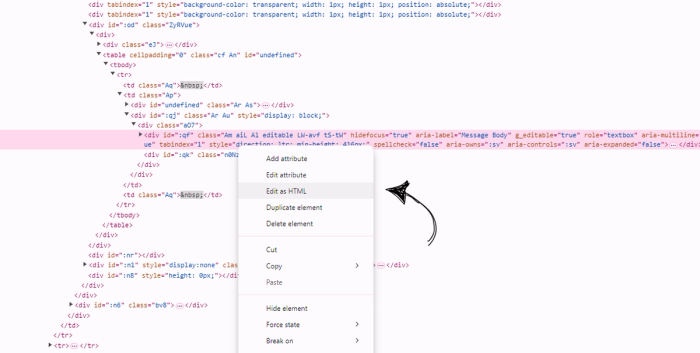
Step 9: Right-click the highlighted element in the developer tools panel and select Edit as HTML. This puts the element into an editable state.
Step 10: Paste your copied HTML code from Tabular after the <br> tag and before the closing </div> tag in the editable area.
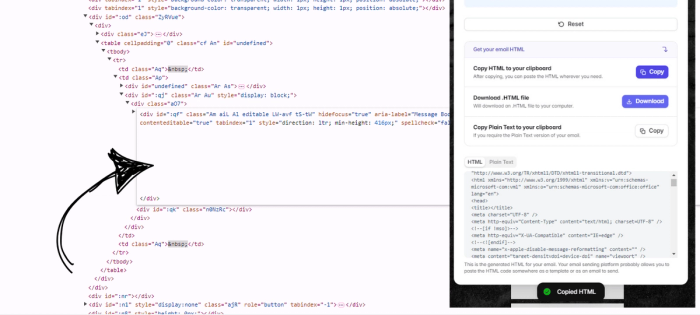
Step 11: Close the developer tools panel. You should now see your email template rendered in the Gmail compose window, looking exactly as it would in a recipient's inbox.
Saving Your Template for Future Use
The real power of this method comes from being able to save your designed email as a reusable Gmail template — so you don't have to repeat this process
If you don’t know how to create reusable emails in Gmail, I suggest reading our article on how to create email templates in Gmail. You can use HTML email templates in Gmail and even send personalized billings and other types of emails. To learn how to send personalized emails in Gmail, check out our article on How to Personalize Emails in Gmail.
Method 2: Using the HTMail Extension
If the inspect method feels like too many steps, there's a faster alternative: the HTMail Chrome extension. This adds an HTML import button directly to your Gmail compose window, making the whole process much more seamless.
Step 1: Search for and install the HTMail extension from the Chrome Web Store.
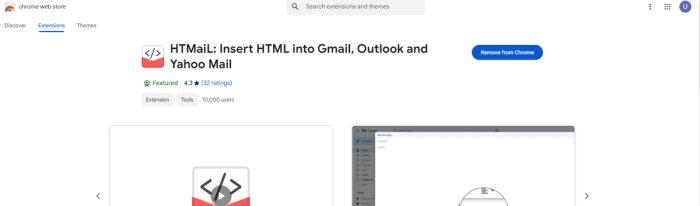
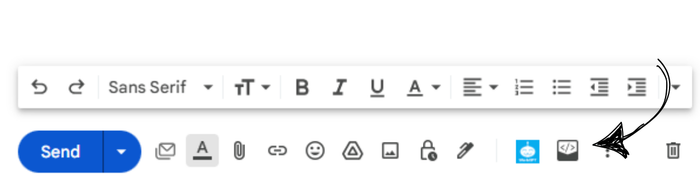
Step 2: Open Gmail and click Compose. You'll notice the HTMail icon has appeared in your compose toolbar. Click on it.
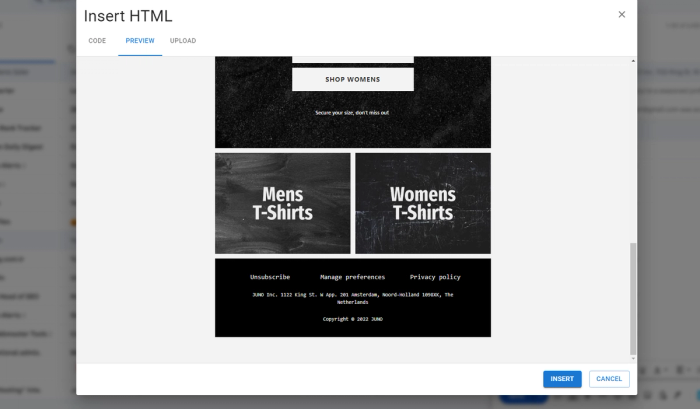
Step 3: A panel will open where you can either paste your HTML code directly or upload the HTML file you downloaded from Tabular.
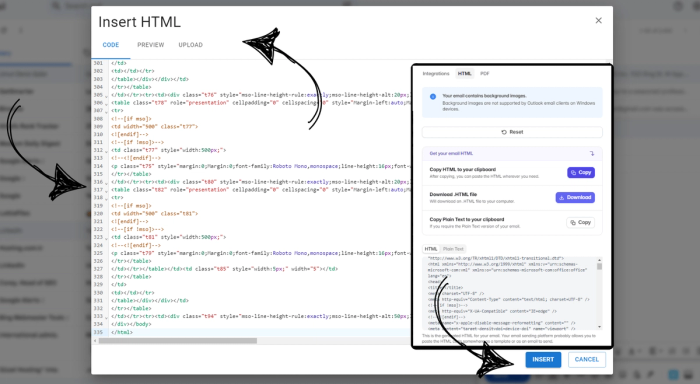
Step 4: Click Preview to see exactly how your email will look before you send it. When you're happy, click Insert to load the template into your compose window.
Final Words
Adding HTML email templates to Gmail might seem complicated at first, but once you've done it a couple of times, it becomes second nature. Whether you prefer the hands-on inspect method or the extension method, you can start sending professional, beautifully designed emails from Gmail today — without writing a single line of code yourself.
Use Tabular's free email templates as a starting point. They're already optimized for Gmail rendering, so you don't have to worry about compatibility issues.
Always send a test email first. Even small HTML issues can cause layouts to break in certain email clients.