Free email templates for Gmail
With Tabular’s drag-and-drop builder, you can quickly create and customize Gmail email templates without coding. Download or generate free HTML templates, fully adjustable to match your brand. Try one today! Customise them in our email template builder.

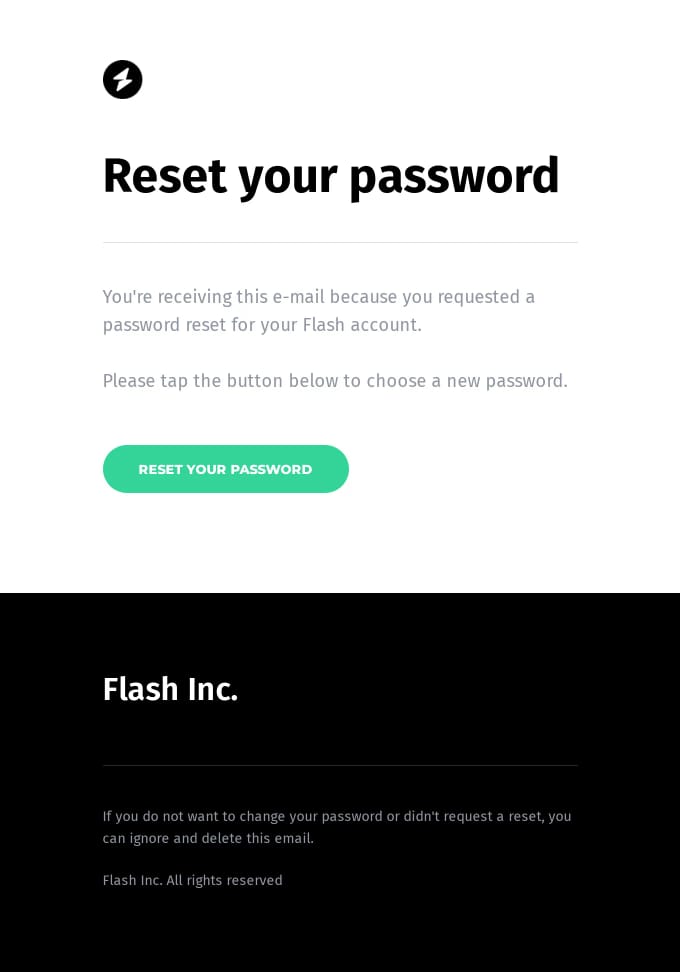
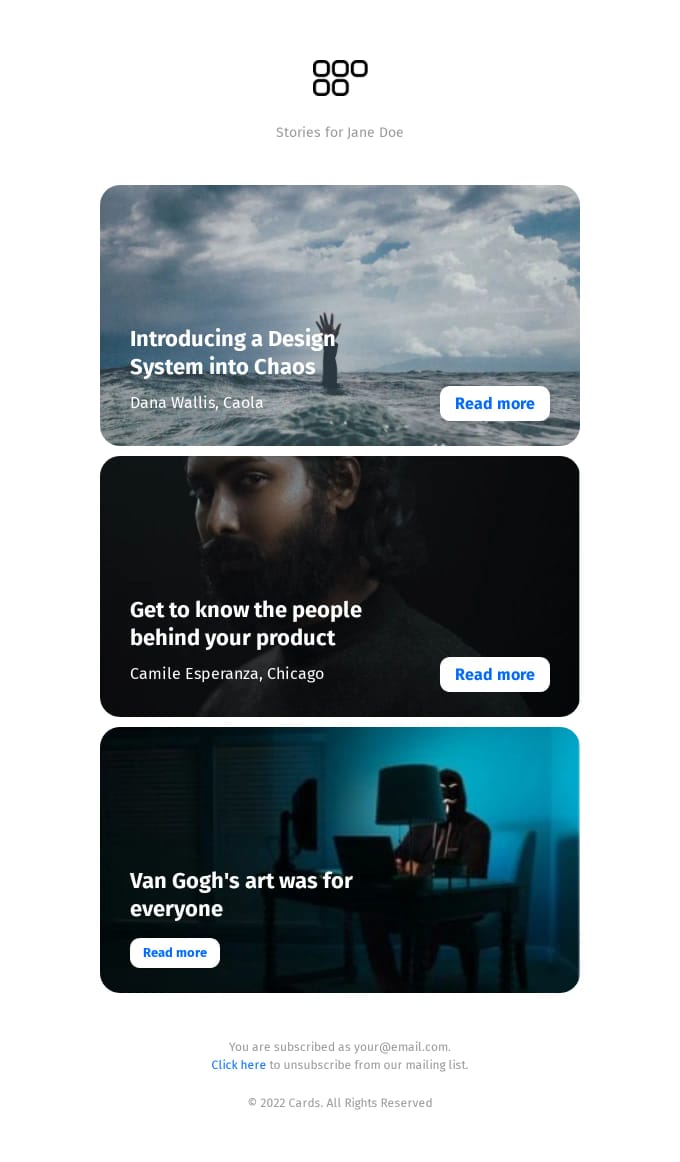
About these email templates for Gmail
- 1Free and responsive
Every template works on desktop and on phones.
- 2Edit without code
Change text, images and colours on a real canvas.
- 3Send it anywhere
Export the HTML, or send it to 26 email platforms.
You can customize every email template with our drag-and-drop email builder and send free test emails without needing to use Gmail.
Creating Email Templates in Gmail: With and Without Extensions
Sending an HTML email template can often be a nightmare, but Tabular’s HTML email template builder makes it easy to create Gmail email templates without any coding. Tabular hosts your email attachments, and our template builder works seamlessly across all devices and email service providers.
Create Reliable, Fast, and Inbox-Optimized HTML Templates for Gmail with Tabular’s Drag-and-Drop Email Builder
I’ll guide you through creating email templates in Gmail and using Tabular’s free email templates directly in Gmail.
Step 1: To get started, open your Gmail dashboard and go to Settings.
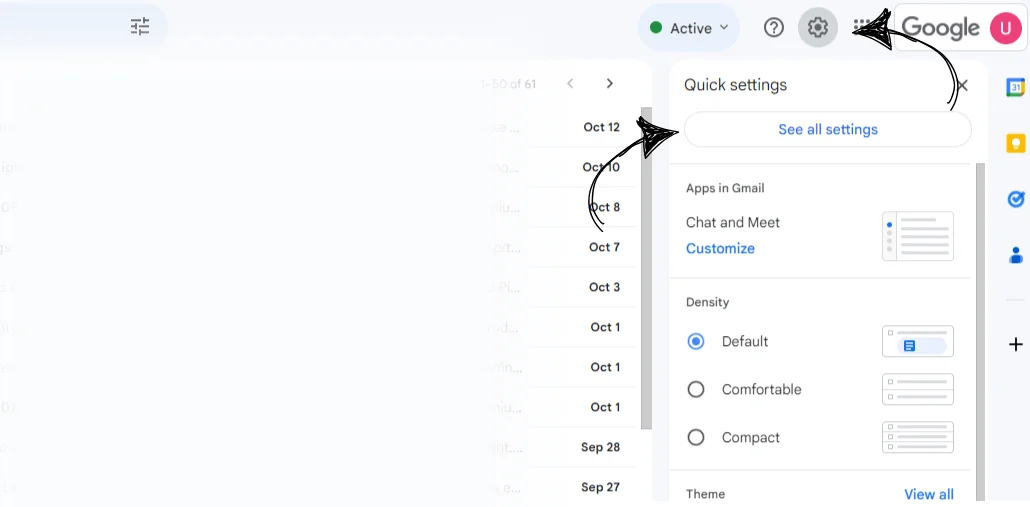
Step 2: Under Settings, you’ll see a button labeled See all settings. Click on that to reveal more advanced settings.
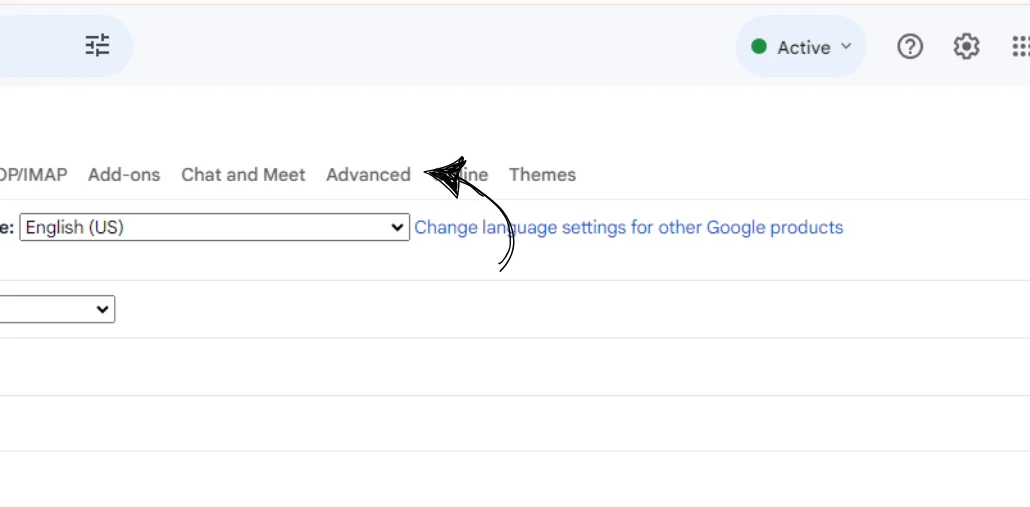
Step 3: Once you’re in the settings menu, locate the Advanced tab. Click on it to access the template customization options.
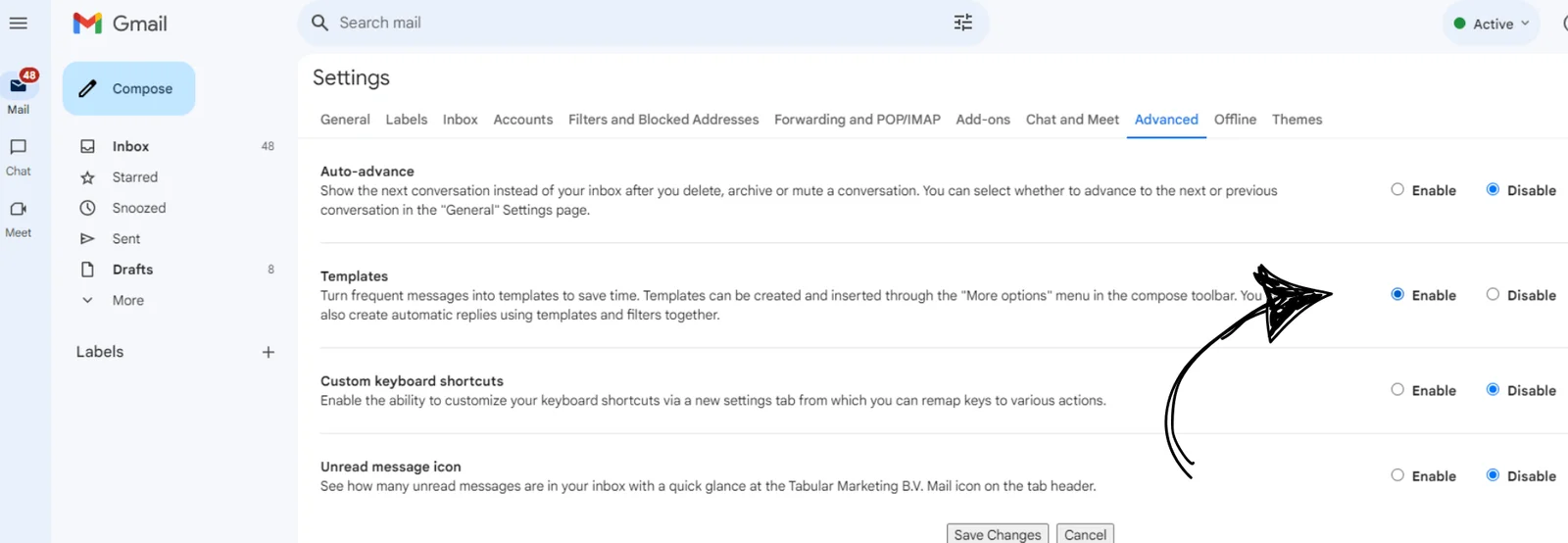
Step 4: Under the Advanced section, enable the Templates feature. This will allow you to create, customize, and reuse pre-made text and HTML email templates.
Step 7: Go to Tabular.email and click on Email Templates (or click the link below) to browse our free designer email templates.
Step 8: If you don’t have an account, sign up for Tabular. You can also log in using your Gmail account.
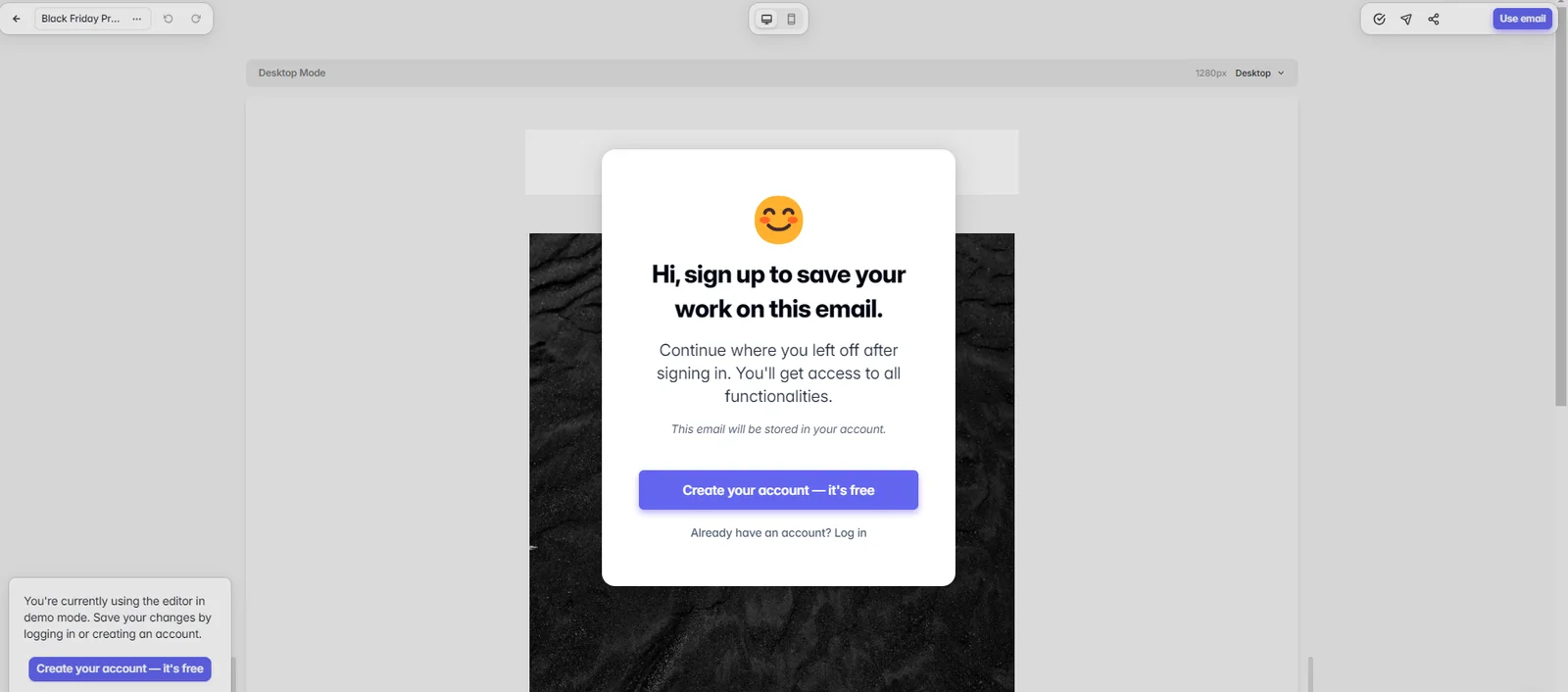
Step 9: From here, you can either send a test email from Tabular for free without needing to edit any HTML, or you can download or copy the customized HTML email template you created using Tabular’s email builder.
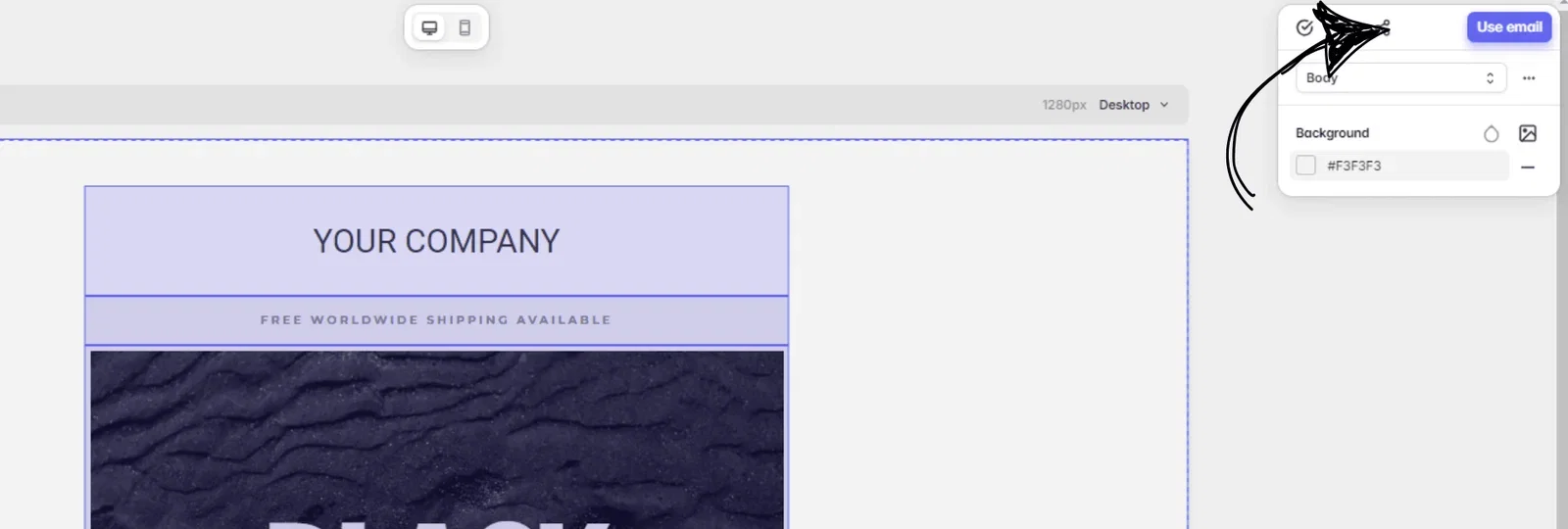
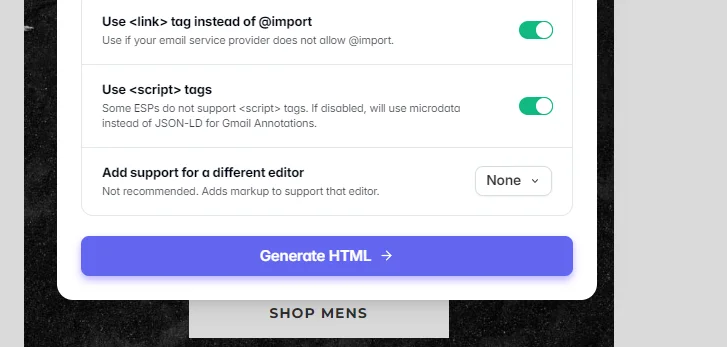
Step 10: After customizing your email using Tabular’s HTML email generator, click on Use Email. A window will pop up showing various options. Tabular allows you to send HTML email templates with attachments directly from Gmail, and it hosts your email images for you. Click Generate HTML.
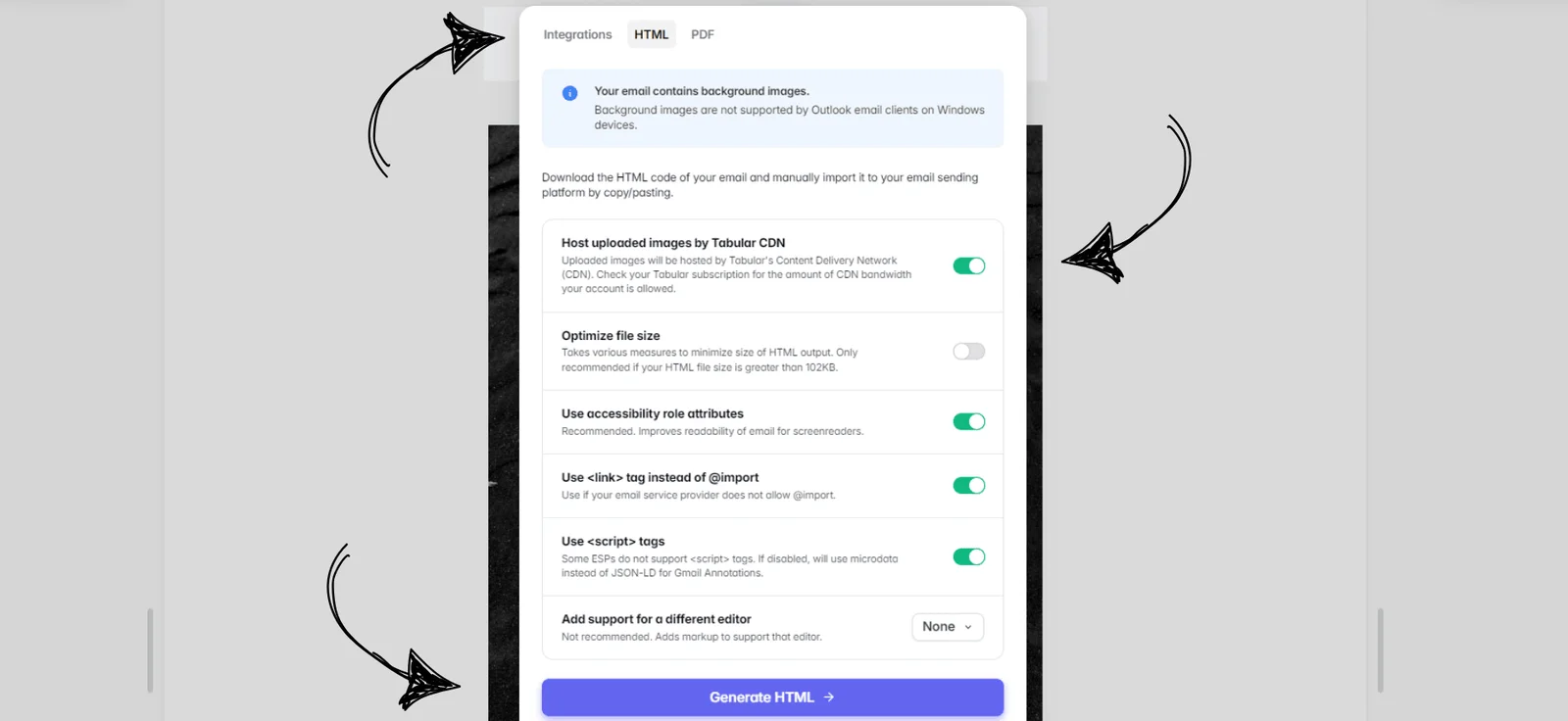
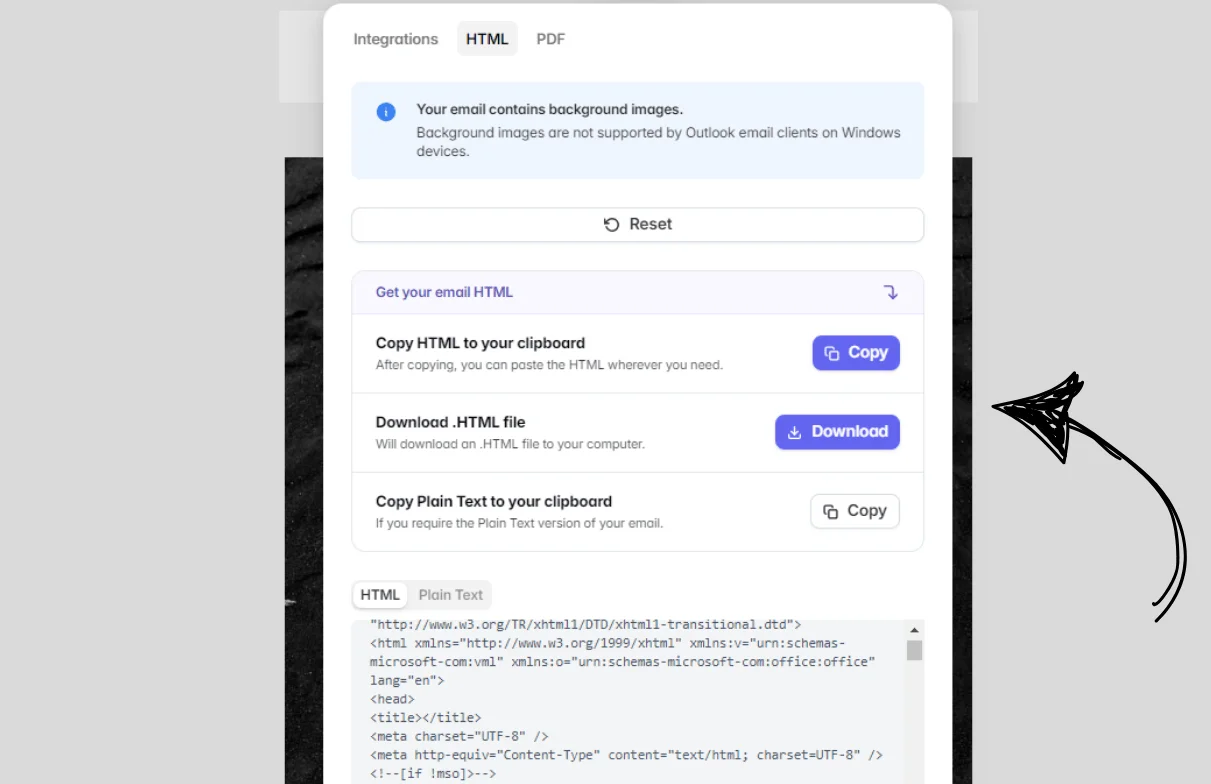
Step 11: Tabular allows you to either download the HTML Gmail email template for free or copy it to your clipboard. Let’s copy it to the clipboard and go back to Gmail.
While there’s an extension available for integrating HTML email templates into Gmail, let’s stick with the classic method for now.
If you’d prefer to learn how to add HTML templates to Gmail without coding, you can skip this step.
Step 12: Return to your Gmail dashboard and click on Compose. Let’s try a free Black Friday email template from one of Tabular’s free Gmail email templates.
Step 13: Right-click in the Gmail compose window and select Inspect. This will allow you to customize the inner HTML of your email.
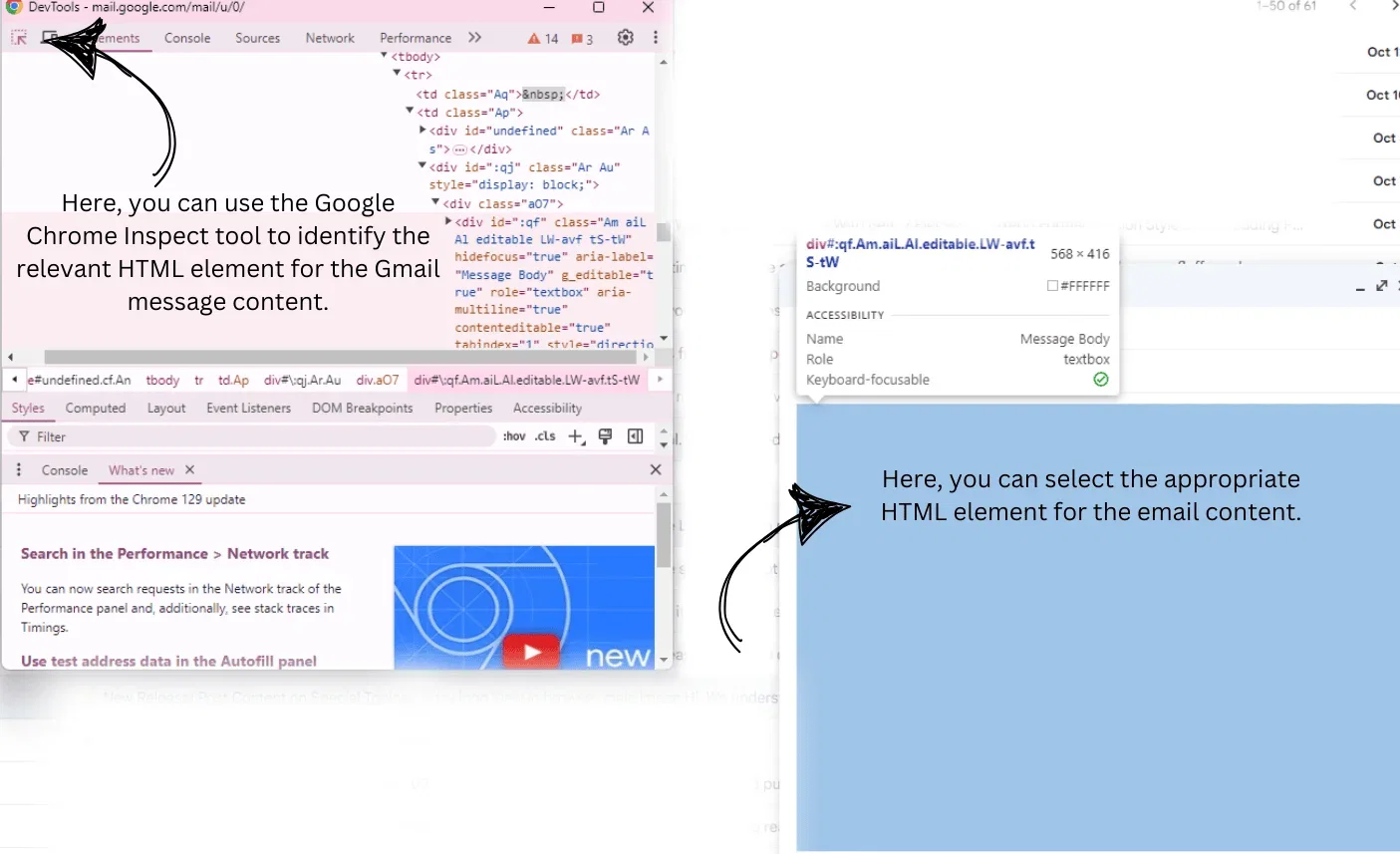
Step 14: Click on the HTML element pointer in Google Inspect and hover your mouse over the Gmail message. Click on the relevant HTML element.
Step 15: Click on Edit as HTML to allow you to paste your content into the HTML element.
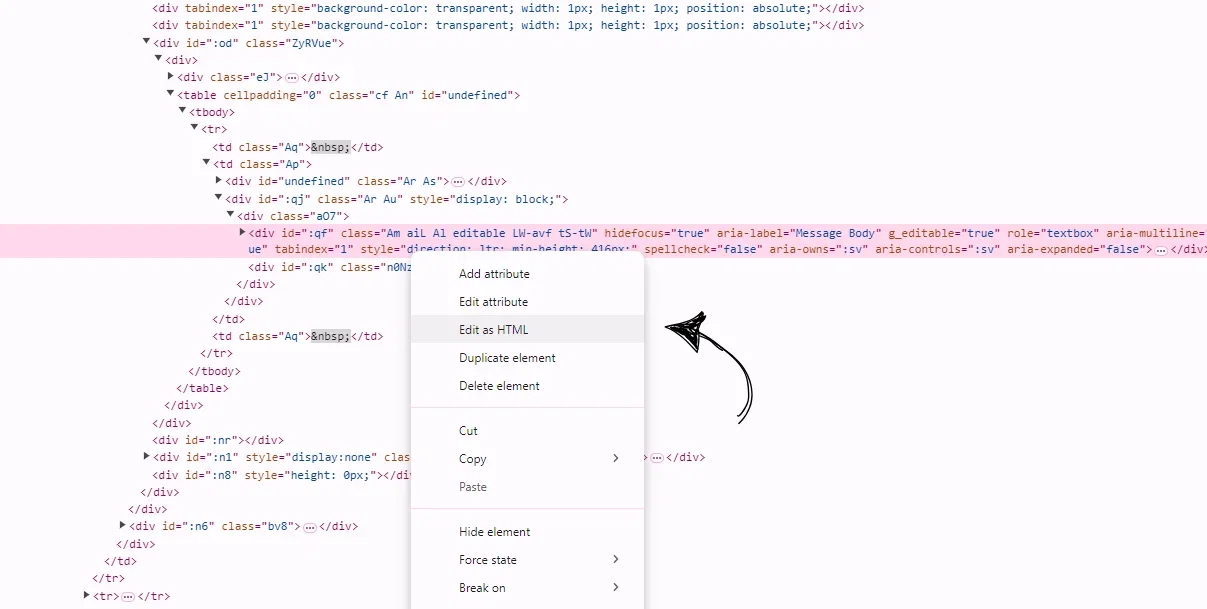
Step 16: Paste the HTML code generated by Tabular’s email builder after the <br> tag and before the closing </div> tag.
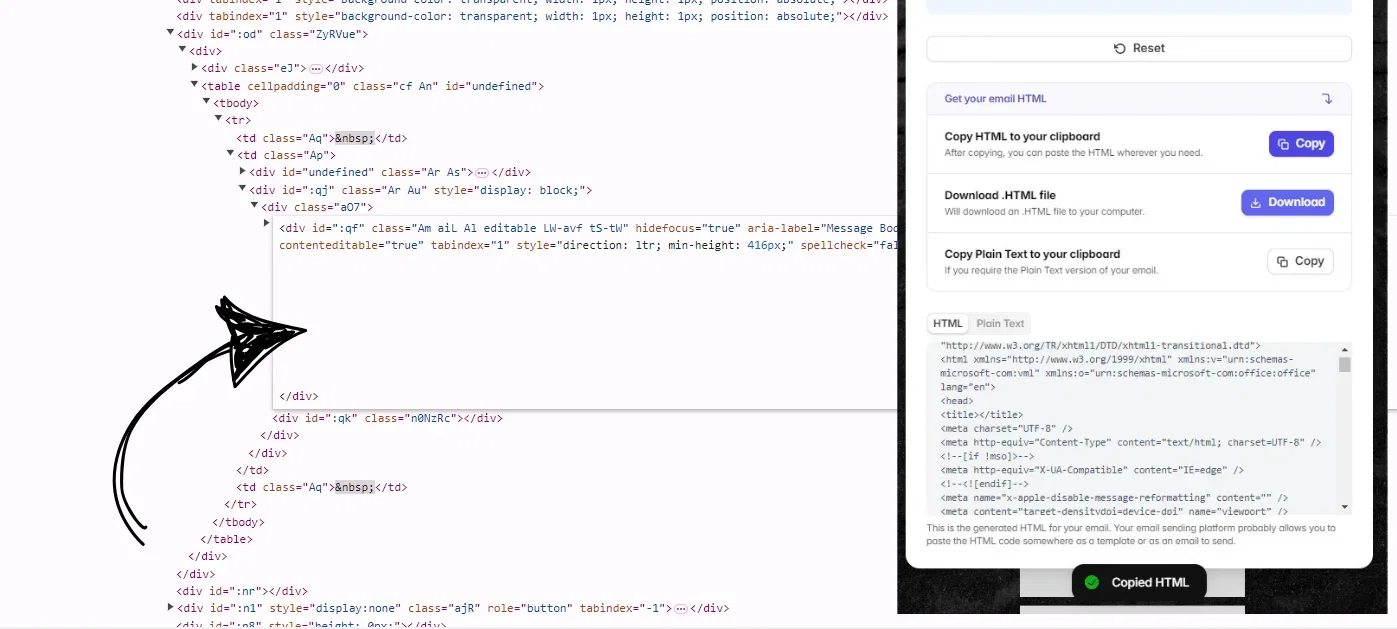
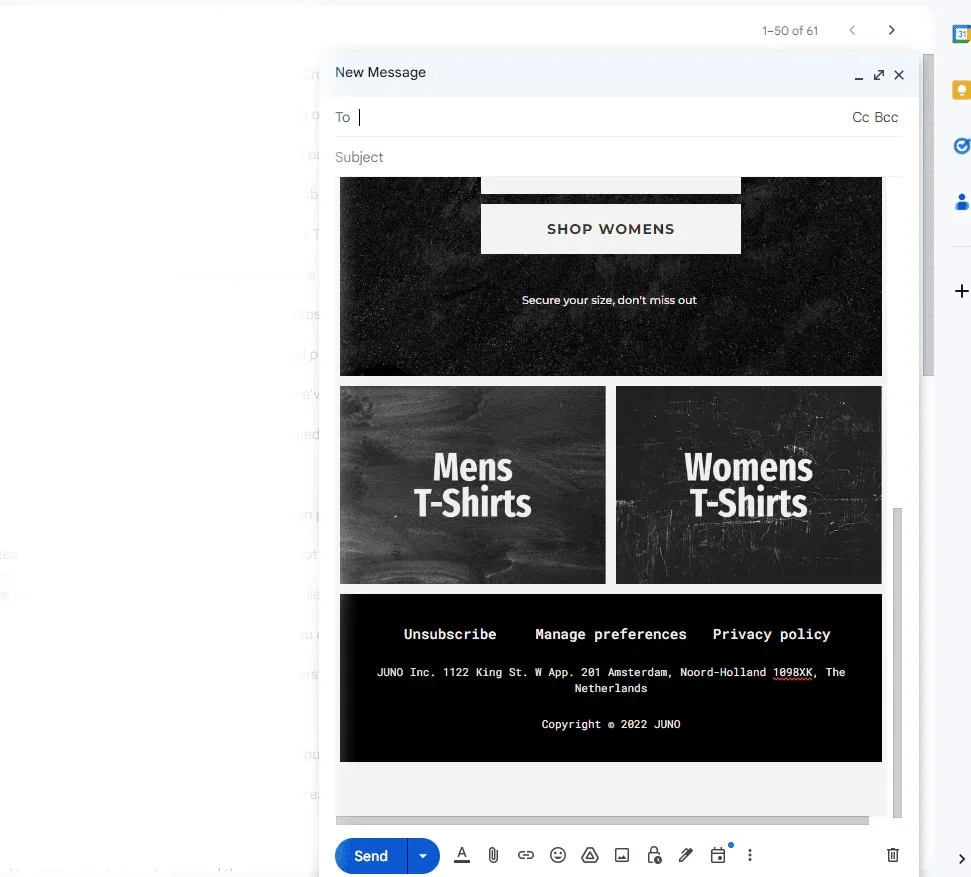
Step 17: Once you’ve pasted the content, close the inspect tab. You should now see your email template in the Gmail compose window.
Step 18: To save the email as a template, click on the three dots in the compose window, hover over Templates, then select Save draft as template and Save as new template.
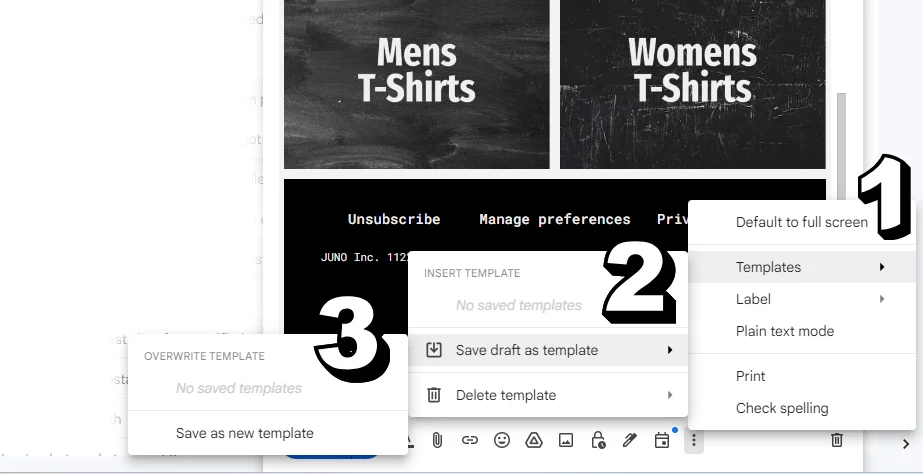
Step 19: Give your template a name, and voilà – you’ve created your first Gmail email template!
Step 20: To reuse this template, simply go back to the same three-dot menu, hover over Templates, and select your saved template.
How to Add HTML Email Templates to Gmail Using an Extension
Step 1: We’ll use the HTMail extension to add HTML email templates to Gmail. Go ahead and download the extension.
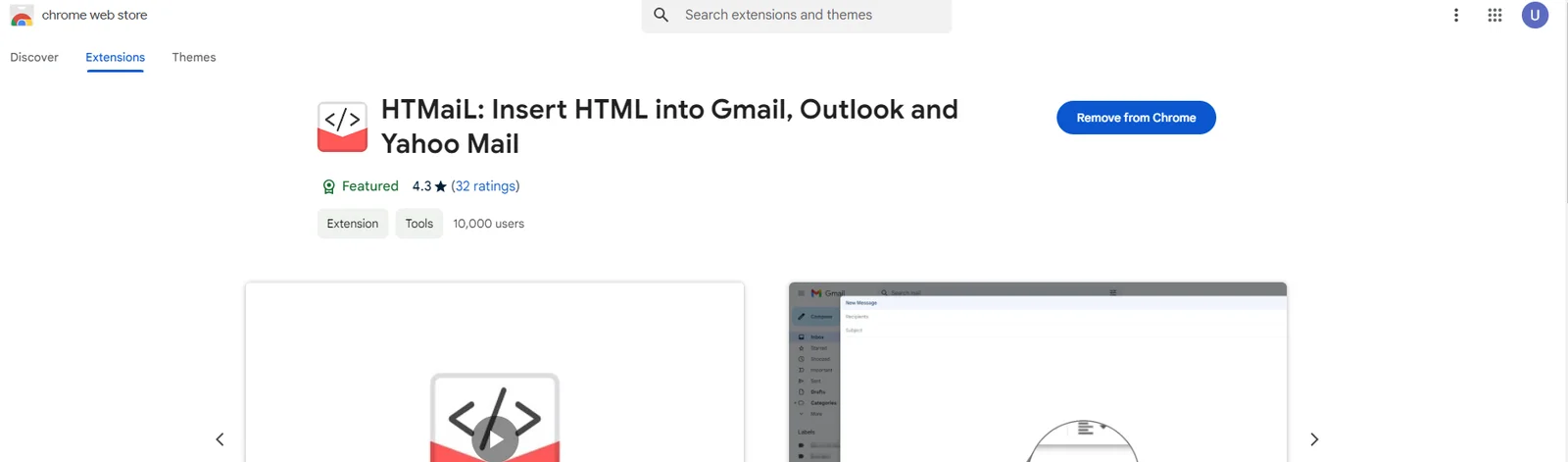
Step 2: Click on Compose in Gmail, and you’ll see the HTMail icon. Click on it.
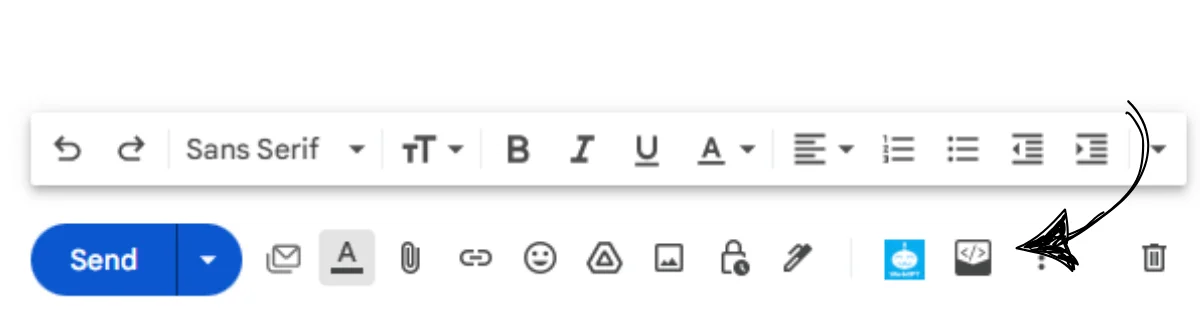
Step 3: A screen will appear where you can paste your HTML code or directly upload the Gmail template you’ve generated using Tabular’s email builder.
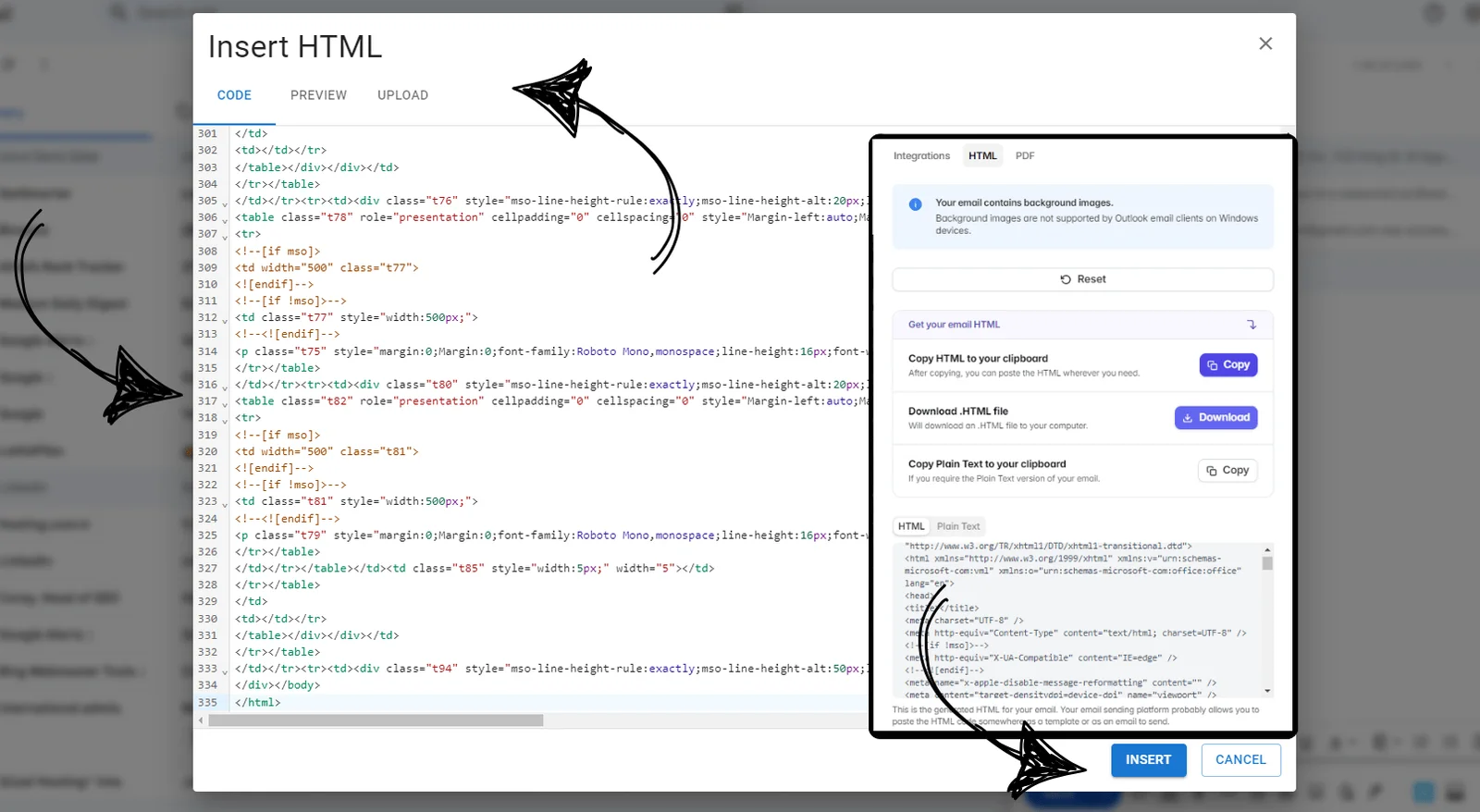
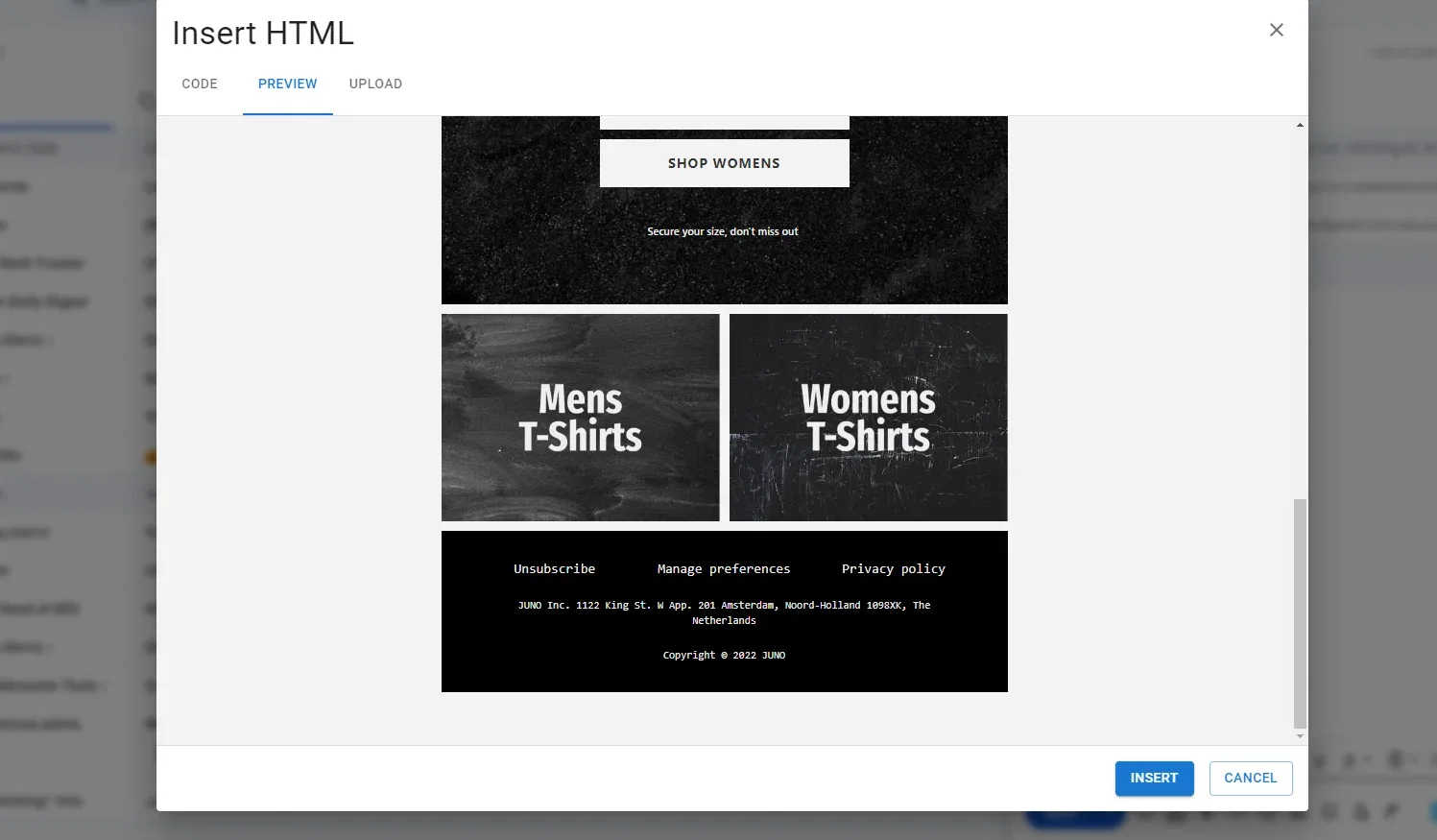
Step 4: Click on Preview to check your email before sending, then click Insert to use the template. After that, you can either save the template to Gmail or access it directly from your Tabular.email dashboard.
Sending Test Emails Using Tabular
Tabular allows you to send free test emails. Simply go to our templates page and choose a template you like – all our free templates are compatible with Gmail.
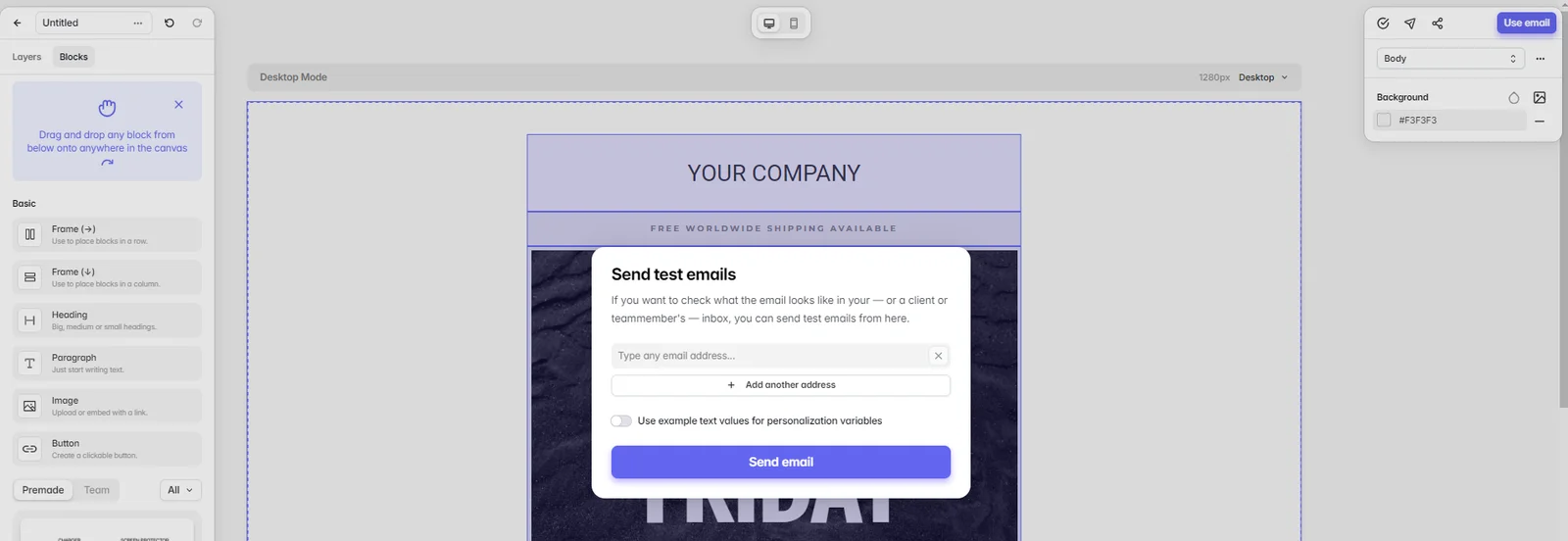
If you don’t have an account, create one and log in. Once logged in, click the paper plane icon to send your email template for free. Just enter the recipient’s email address, and you’re done!
Free Gmail Email Templates
All of our free email templates can be used in Gmail without any issues, including attachments. With Tabular’s email builder, you can create beautiful and engaging HTML email templates with personalized content using our drag-and-drop builder.
You can customize and download free HTML Gmail templates at no cost.
Discount Offer Email Templates
Discount offer email templates are used to notify customers about special deals, promotions, or limited-time discounts. They are effective for encouraging purchases and increasing sales during promotional periods.
Welcome Email Templates
Welcome email templates help you greet new subscribers or customers. They are essential for making a positive first impression and providing important information to help users get started with your product or service.
Holiday Email Templates
Holiday email templates are designed for seasonal communications. They allow you to connect with your audience during festive times by sending greetings, special offers, or holiday-related updates.
SaaS Email Templates
SaaS email templates cater to Software as a Service companies. They are useful for onboarding new users, announcing feature updates, or providing usage tips to enhance the user experience.
Promotional Email Templates
Promotional email templates are intended to showcase products, services, or special offers to your audience. They aim to generate interest and encourage recipients to take a specific action, such as making a purchase or signing up for an event.
Ecommerce Email Templates
Ecommerce email templates are basically for online retailers to communicate with customers. They can be used for order confirmations, shipping notifications, product recommendations, or cart abandonment reminders.
Transactional Email Templates
Transactional email templates are automated messages triggered by user actions, like making a purchase or updating account details. They provide essential information such as receipts, shipping details, or account confirmations.
Email Newsletter Templates
Email newsletter templates are used for sending regular updates to subscribers. They can include company news, blog posts, industry insights, or any content that keeps your audience engaged and informed.
Confirmation Email Templates
Confirmation email templates are sent to verify and acknowledge actions taken by users, such as signing up for a service, booking an appointment, or changing account settings. They ensure users have a record of their actions and any next steps.
Fast Email Creation with Tabular’s Drag-and-Drop Email Builder — Flawless HTML for Gmail Templates
Drag-and-Drop Email Builder: Tabular.email allows you to create HTML email templates without writing a single line of code. You can design professional email templates easily using our email builder.
Mobile-First Design: In 2024, most emails are opened on mobile devices. With Tabular’s email builder, you can create compelling and responsive email templates that work seamlessly on any device.
Branding: With Tabular’s reusable design blocks, you can maintain brand consistency across all your marketing channels.
Seamless Integration: Tabular integrates with popular email marketing platforms like SendGrid, Mailgun, and Mailchimp.
Dynamic Personalization: Tabular supports dynamic content, enabling personalized emails that adapt based on user data.
Why Tabular is the Best Email Template Builder for Gmail
Tabular is designed to solve the biggest problems Gmail users face when creating professional email layouts. Gmail is one of the most restrictive email clients and often breaks complex designs, but Tabular eliminates these issues with a simple and reliable builder.
1. 100 percent Gmail safe HTML Email Templates
Tabular generates clean table based HTML that renders consistently on Gmail desktop, mobile, and the Gmail app. No unnecessary CSS, no scripts, and no layout elements that Gmail strips out.
2. Zero technical skills required
You can create fully responsive, branded emails without writing a single line of code. The interface is simple, visual, and built specifically for non technical users who still need pixel perfect results on Gmail.
3. Instant export to Gmail
Tabular lets you copy paste HTML directly into Gmail or export in formats that Gmail supports with no loss in styling. This removes the usual Gmail formatting problems that happen when pasting code from other builders.
4. Perfect for small businesses and everyday email tasks
Tabular is not bloated like enterprise marketing platforms. It focuses on fast creation of clean emails for sales, onboarding, internal communication, business proposals, announcements, and customer support messages. Everything is optimized for Gmail performance.
5. Built in responsive design
Gmail is strict with CSS, but Tabular’s structure ensures your emails are mobile friendly without relying on techniques Gmail rejects. The builder uses bulletproof responsive patterns proven to work on all Gmail environments.
6. Lightweight code improves deliverability
Gmail prefers simple HTML because it loads faster and triggers fewer spam filters. Tabular’s template code is minimal, avoids unnecessary styles, and improves inbox placement.
7. Designed for copy paste workflows
Unlike most builders that target ESPs, Tabular is made for people who want to design in a builder then send from Gmail. Everything exports cleanly so you can use Gmail’s native sending and tracking tools.
8. No learning curve and no clutter
You do not need a marketing or design background. Tabular is simple, fast, and focused on one thing creating reliable, clean, professional Gmail compatible emails.